JTBDs that AI can help with
End-to-end journeys for regular and expert Calendar users were mapped to identify the Jobs to Be Done that AI could support at each stage.
03
 Static Events vs. Flexible Events
 Design team weekly10am-10:45am







Back to back meetings
Fragmented time
Conflicts



Calendars lock every event into an exact time slot, even when its timing could be flexible. As schedules change, this rigidity leads to conflicts, fragmented time, and back-to-back meetings—leaving users to manually rearrange their day.
An event can matter without being tied to one exact time. Flexible Events let users define when it can happen, how long it needs, or a weekly goal—giving AI room to rebalance the schedule within those boundaries.

My 1:1 with Mateo doesn’t have to be this exact time, it can be any time on early this week
My lunch time can be 0.5hr between 12:00 pm - 1:00 pm
My focus time can vary as long as I get 15h per week
04
Mark events as flexible

When users click “Mark as flexible,” Zoom AI analyzes the event’s details and calendar context to generate initial flexible rules. Once processing is complete, the event is marked “Flexible.”

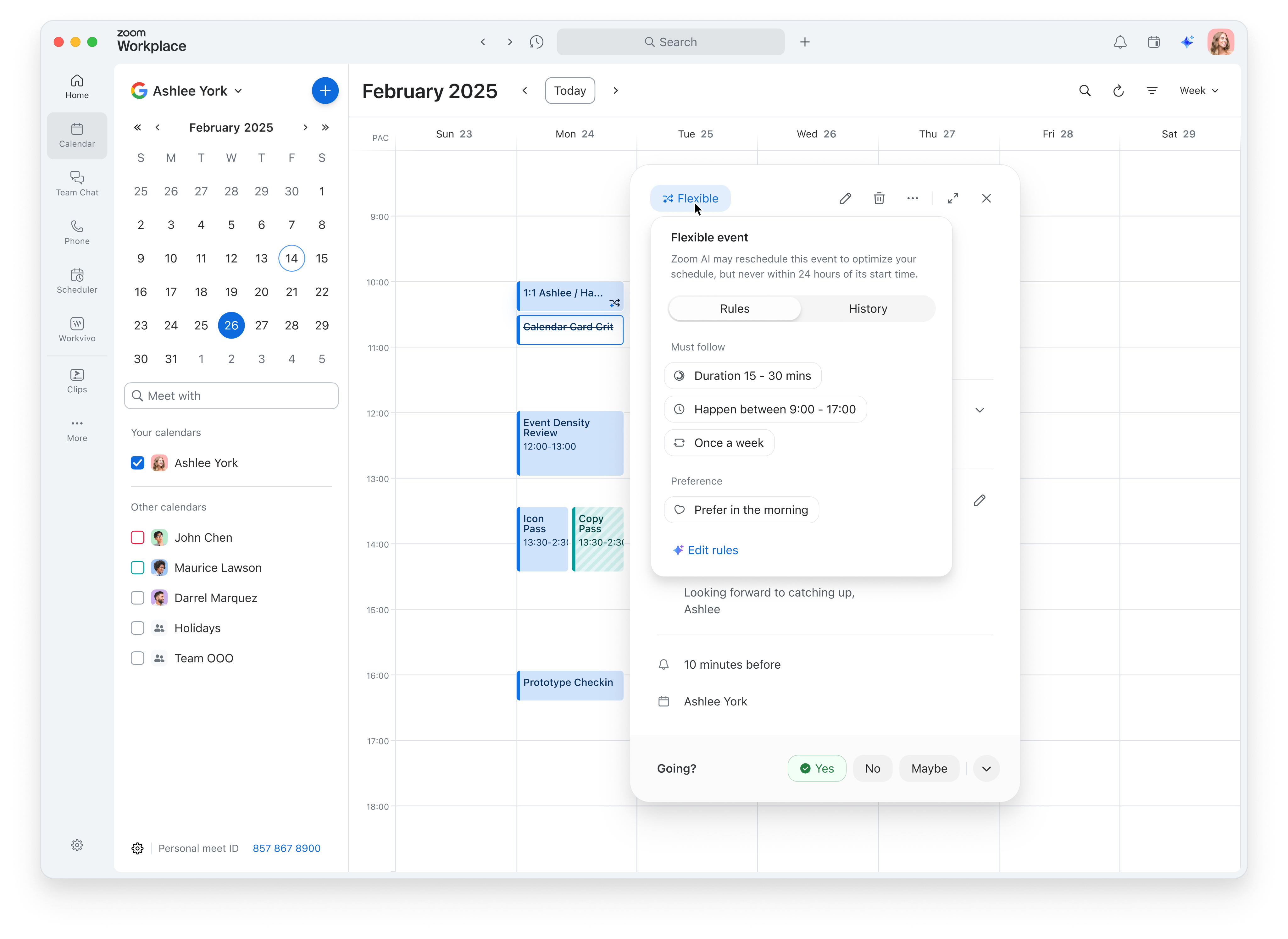




Hovering over “Flexible” reveals the event’s rules, grouped into “Must follow” constraints and “Preference” guidance. The popover also explains the safeguard: Zoom AI will never automatically reschedule the event within 24 hours of its start time.

05
Future events - Automatically reschedule
Events more than 24 hours away are treated as future events. When the calendar changes, Zoom AI reevaluates them according to their flexible rules.
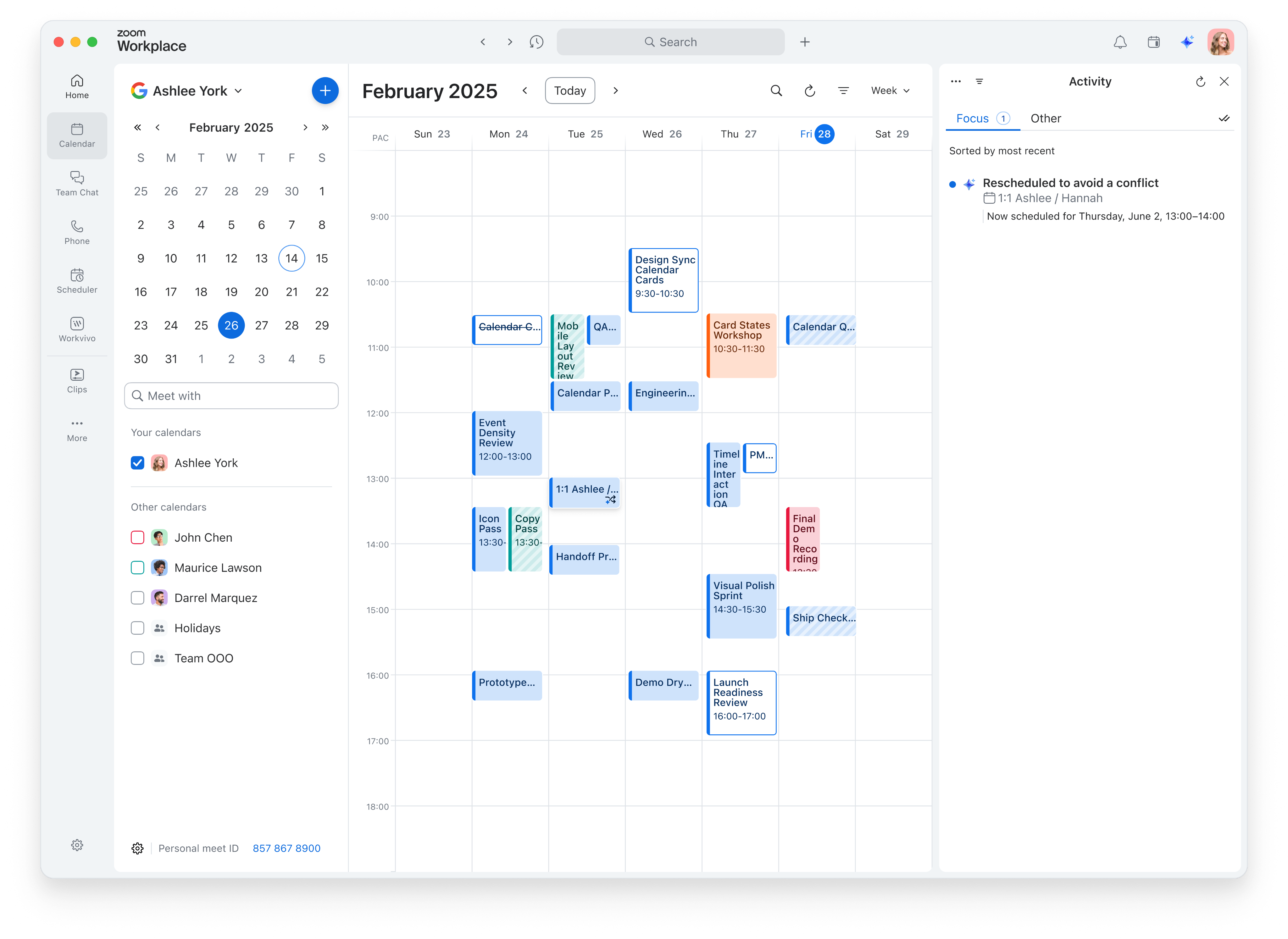
After each automatic reschedule, users receive in-app and email notifications, keeping them informed of the event’s updated time.
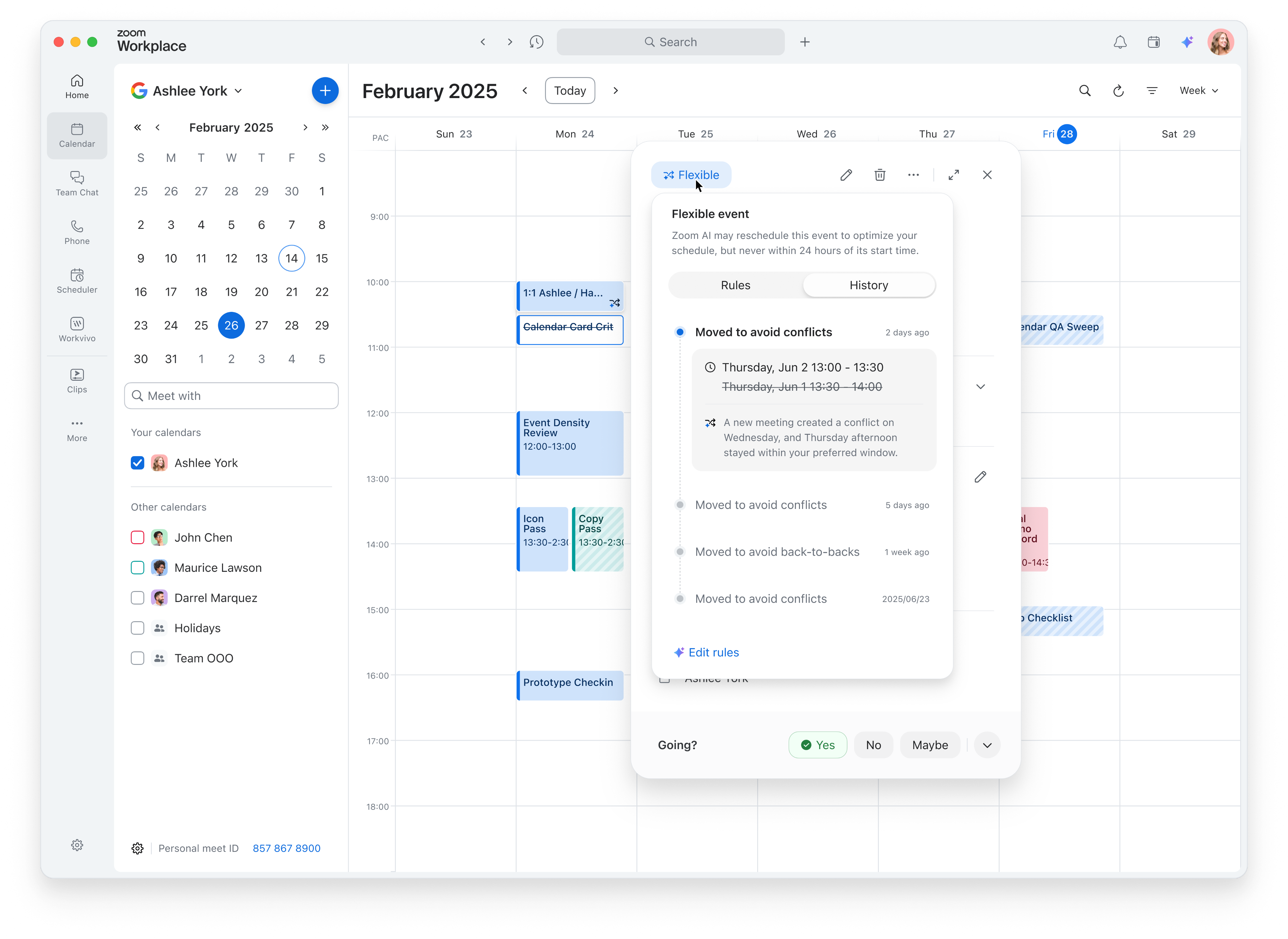
Users can open the event card, hover over “Flexible,” and switch to the “History” tab anytime. It’ll show when the adjustment happened, the previous and new event times, and why Zoom AI made the change.
06
Upcoming events - No last time changes
Events starting within 24 hours are treated as upcoming events. Zoom AI suggests better times while keeping the current schedule unchanged until users choose to act.
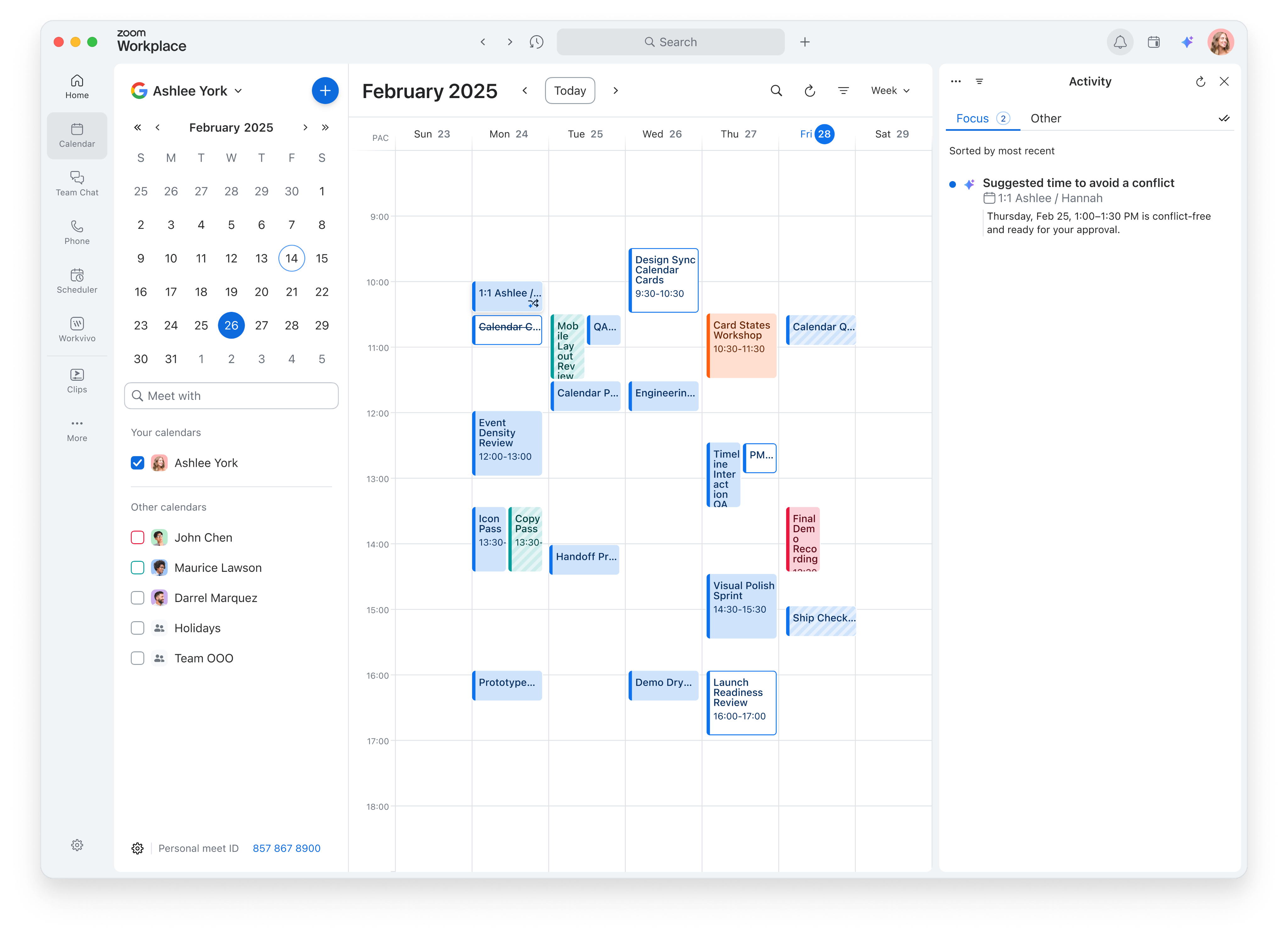


When Zoom AI finds a better time for an upcoming event, it sends users a notification. Clicking the notification opens the corresponding event card in the calendar to review the suggestion.
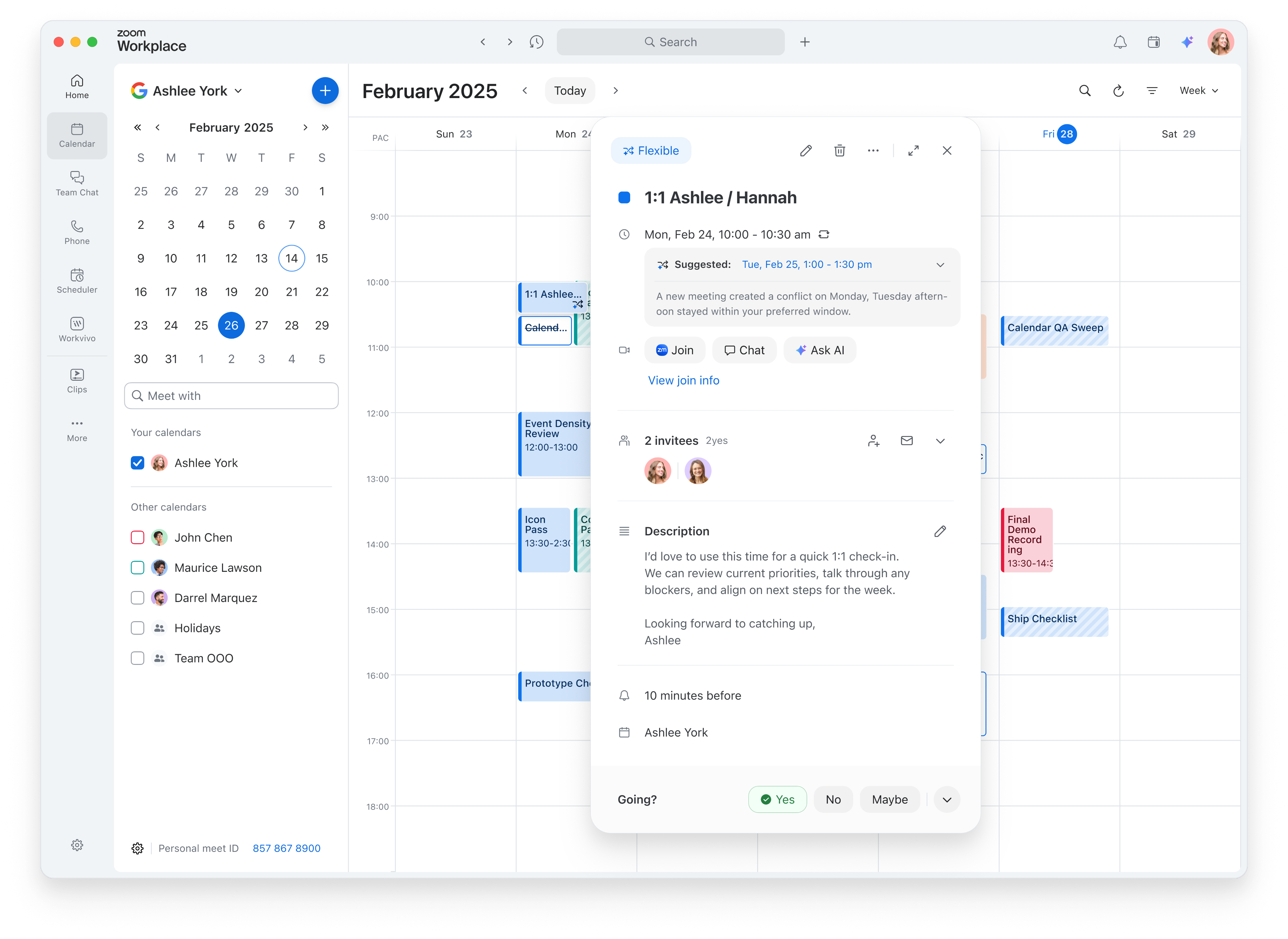




The event card highlights the top recommendation and explains why it’s a better fit. Users can expand the section to explore additional suggested times.
Hosts can click a suggested time to move the event directly to that time.
Invitees can click a suggested time to send it to the host as a new time proposal.
07
Edit rules

If users want to change the current rules or add new ones, they can click “Edit rules” at any time to update how the event can be scheduled.
Clicking “Edit rules” opens the Rules Editor modal and the Zoom AI panel alongside it. Users can work with Zoom AI to update existing rules or add new ones. Suggested prompts in the AI panel provide examples and inspiration to help users get started.
08
Prompt to flexible rules
After users submit a prompt, Zoom AI analyzes their request and extracts scheduling constraints and preferences from natural language.
The generated rules are added directly to the Rules Editor and highlighted for review. Users can undo the generated changes or click “Save” to apply the updated rules.
09
Reflections
The project changed the question from “Can AI reschedule this?” to “When should AI act, when should it ask, and how should it remain accountable?”
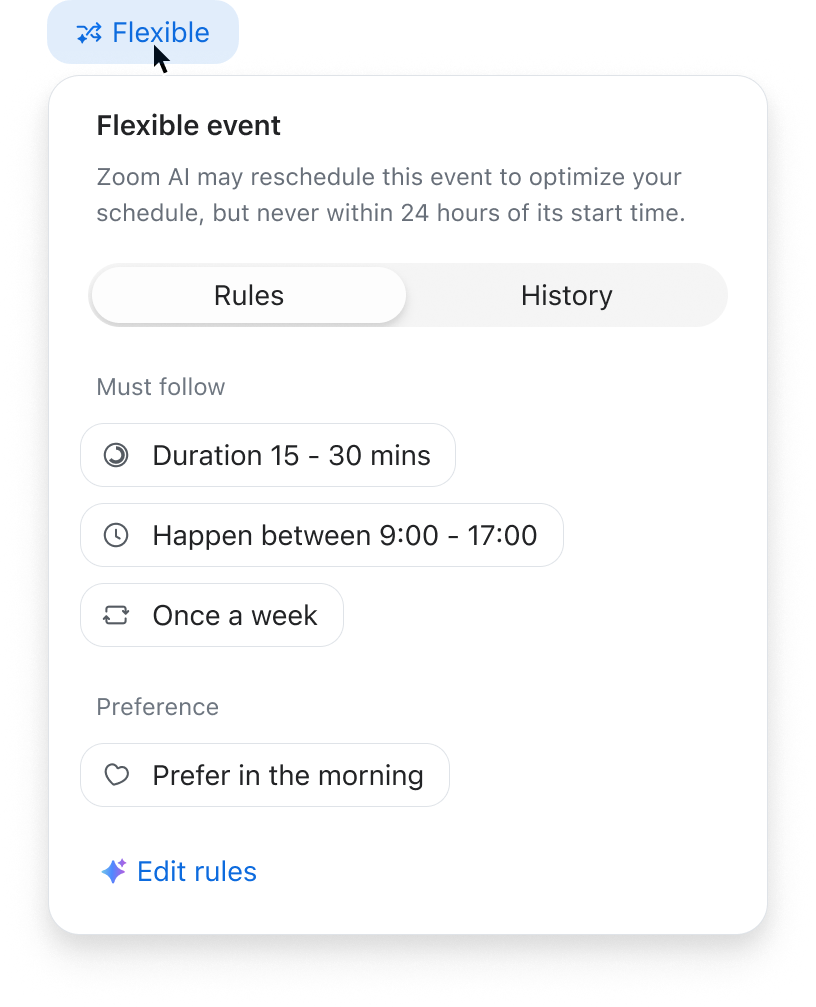
show the event's rules and 24-hour safeguard, so users understand when AI may move it

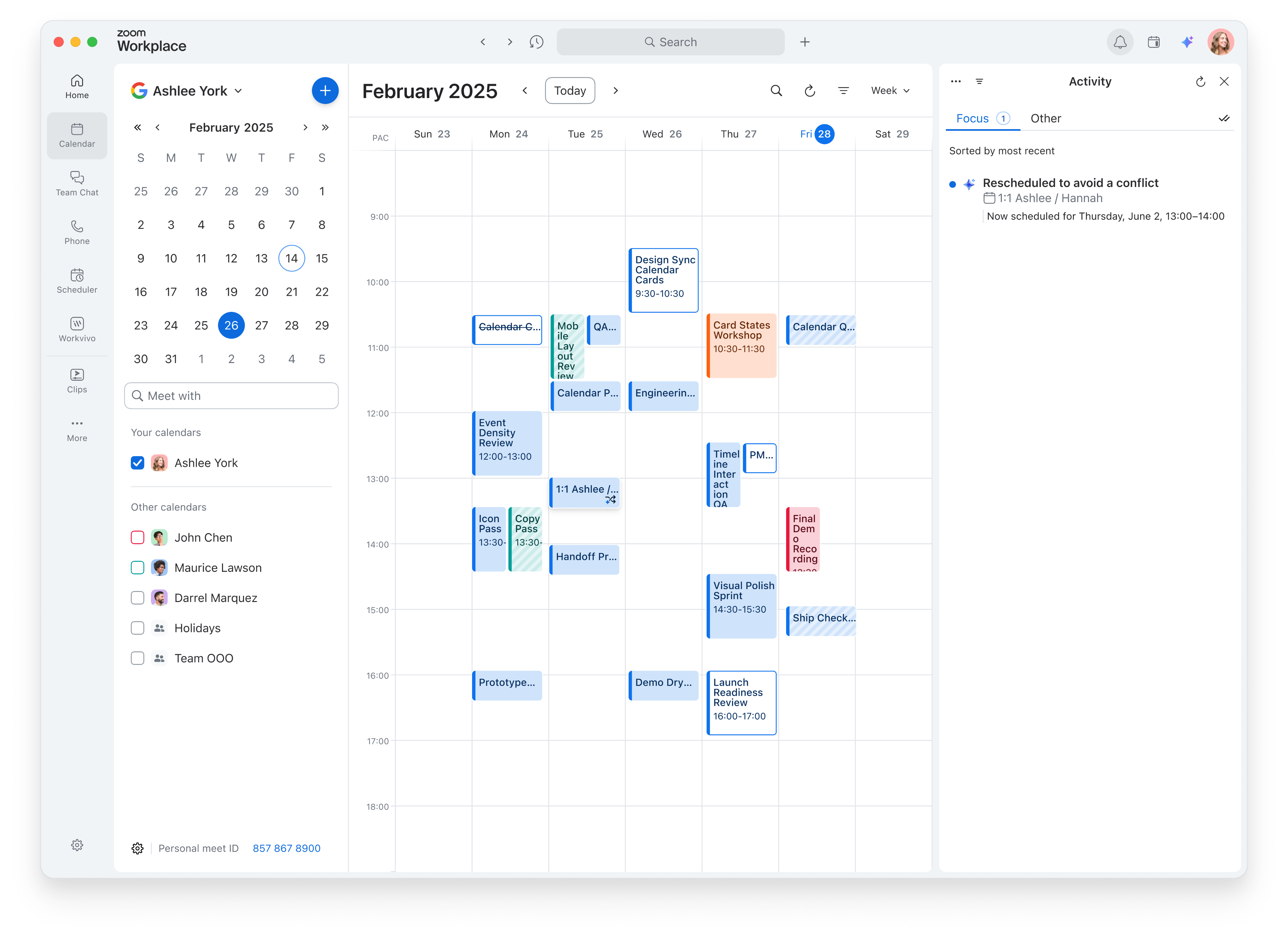
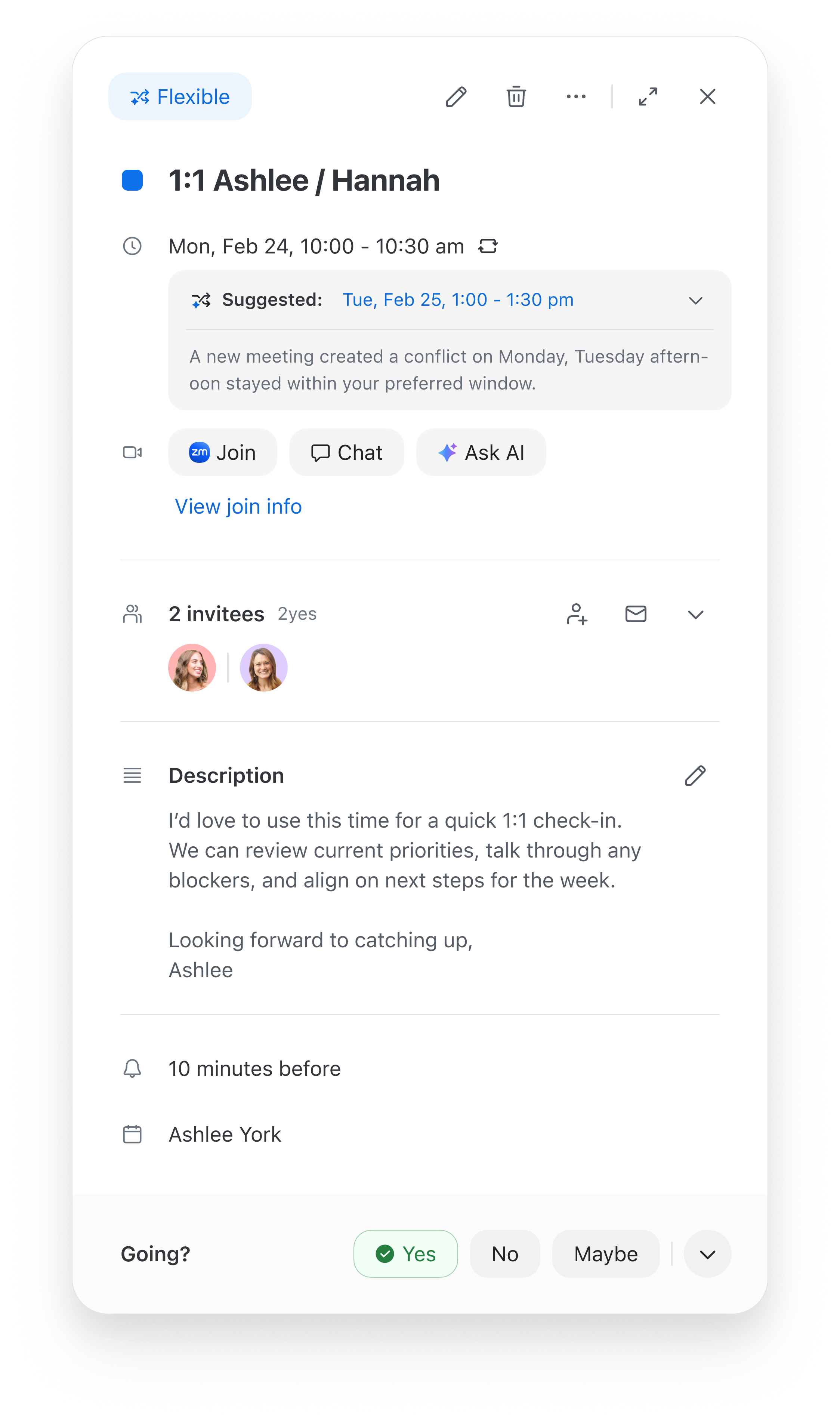
over 24 hours, auto-adjust eligible events; within 24 hours, suggest times for hosts to reschedule or invitees to propose new times
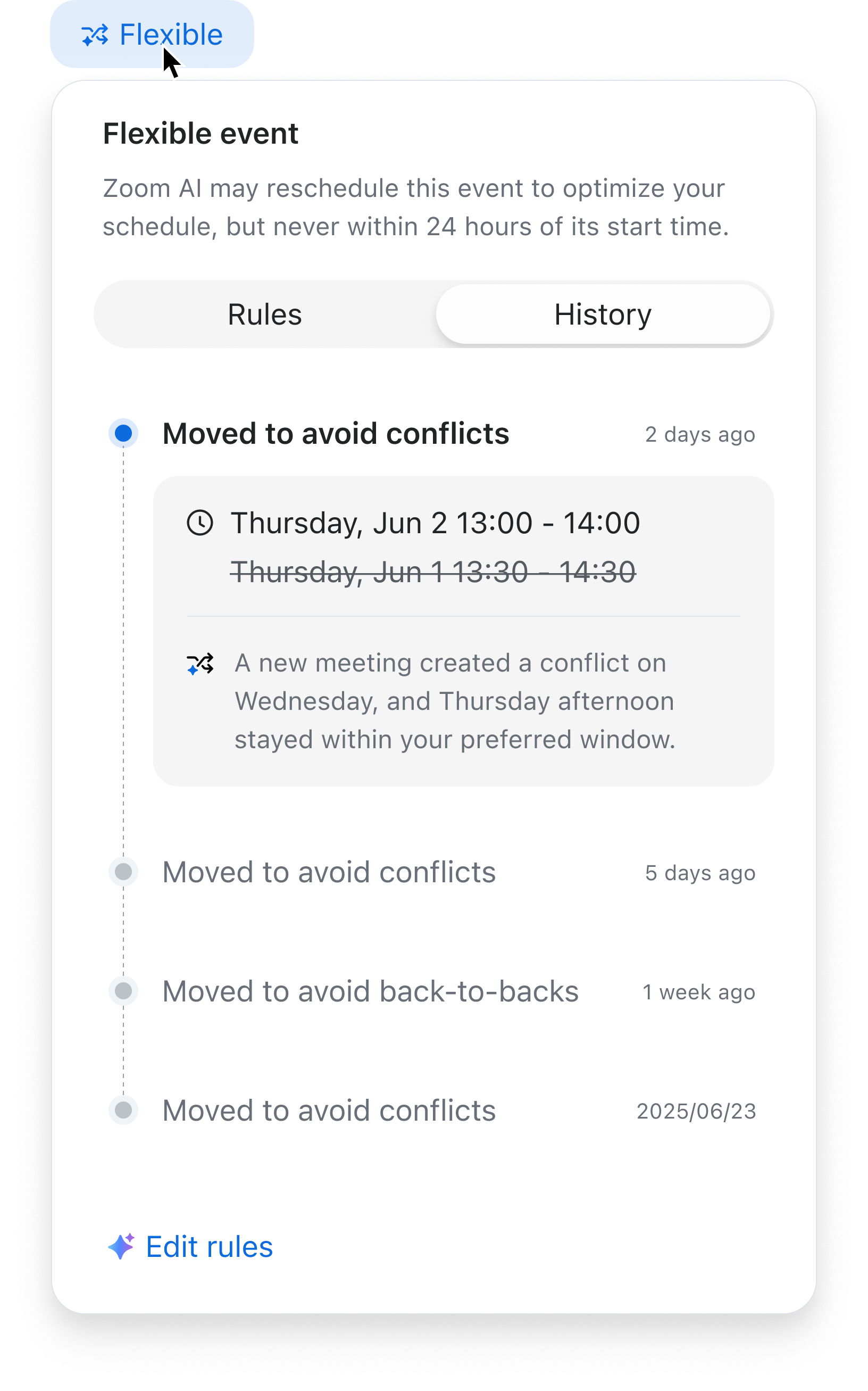
Explain what changed and why, and keep a record of the action in History