Booking Page Creation
Simplifying the creation experience in Zoom Scheduler
An updated creation experience for Zoom Scheduler: create a booking page in one click, with more detailed settings progressively revealed in the full editor as needed.
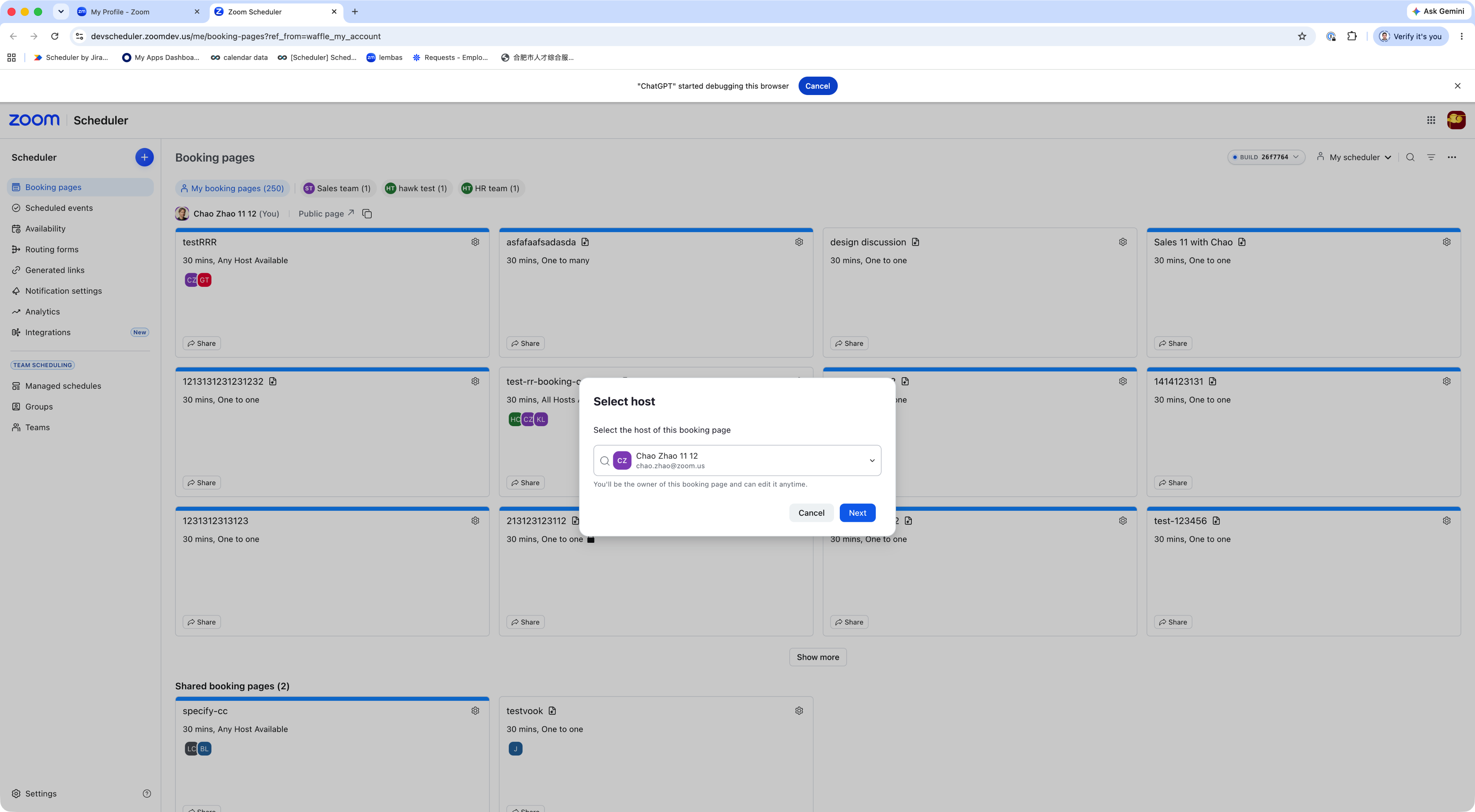
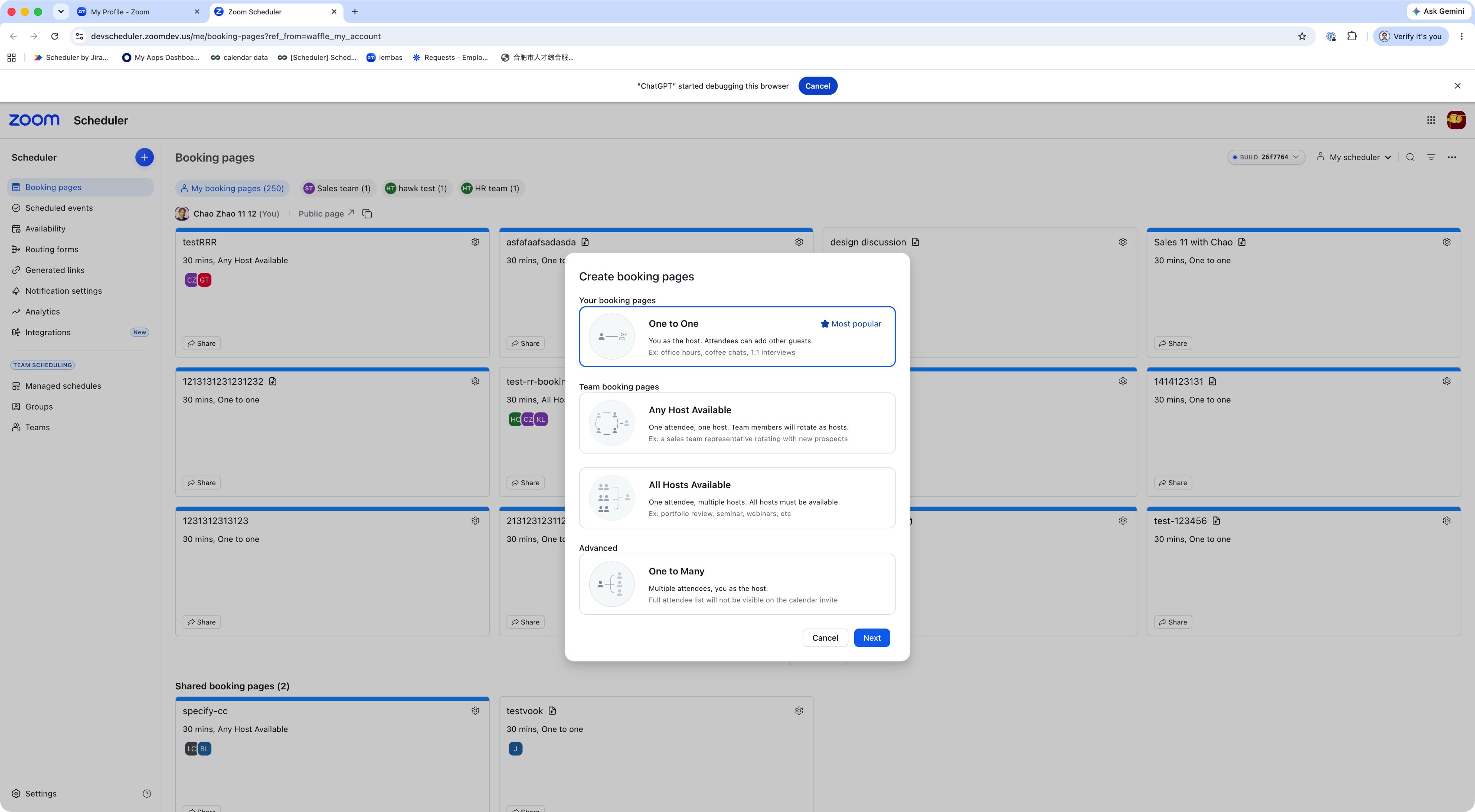
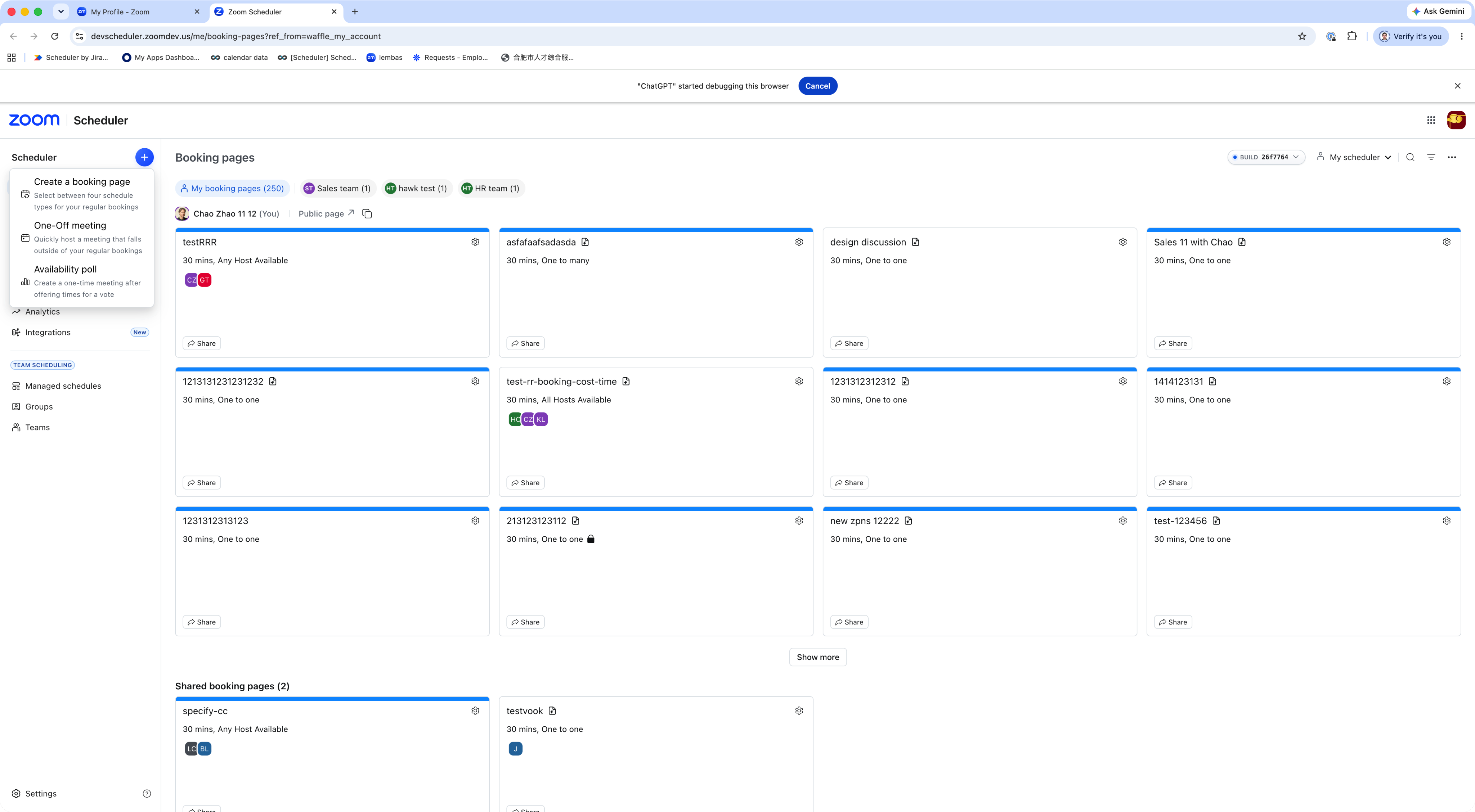







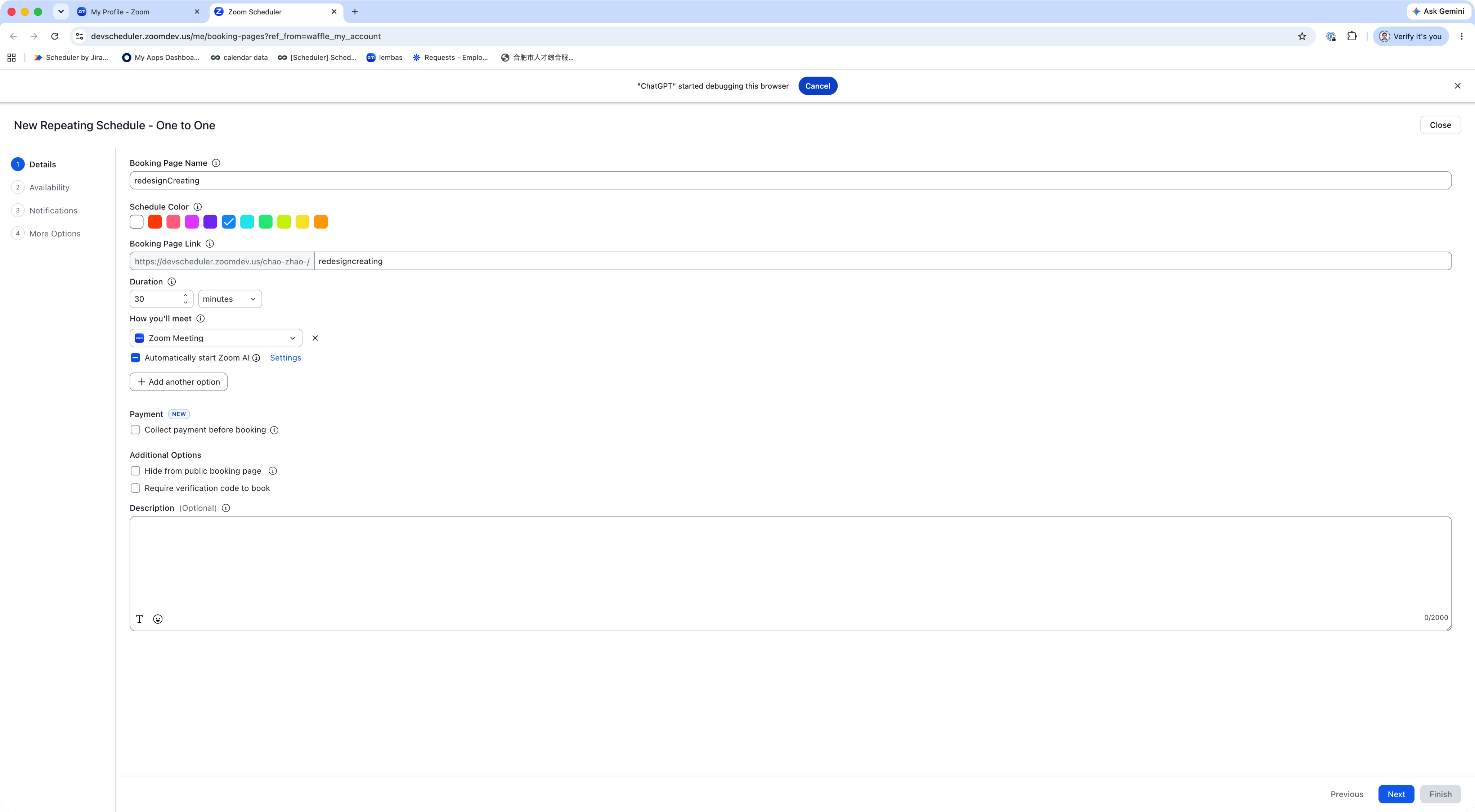




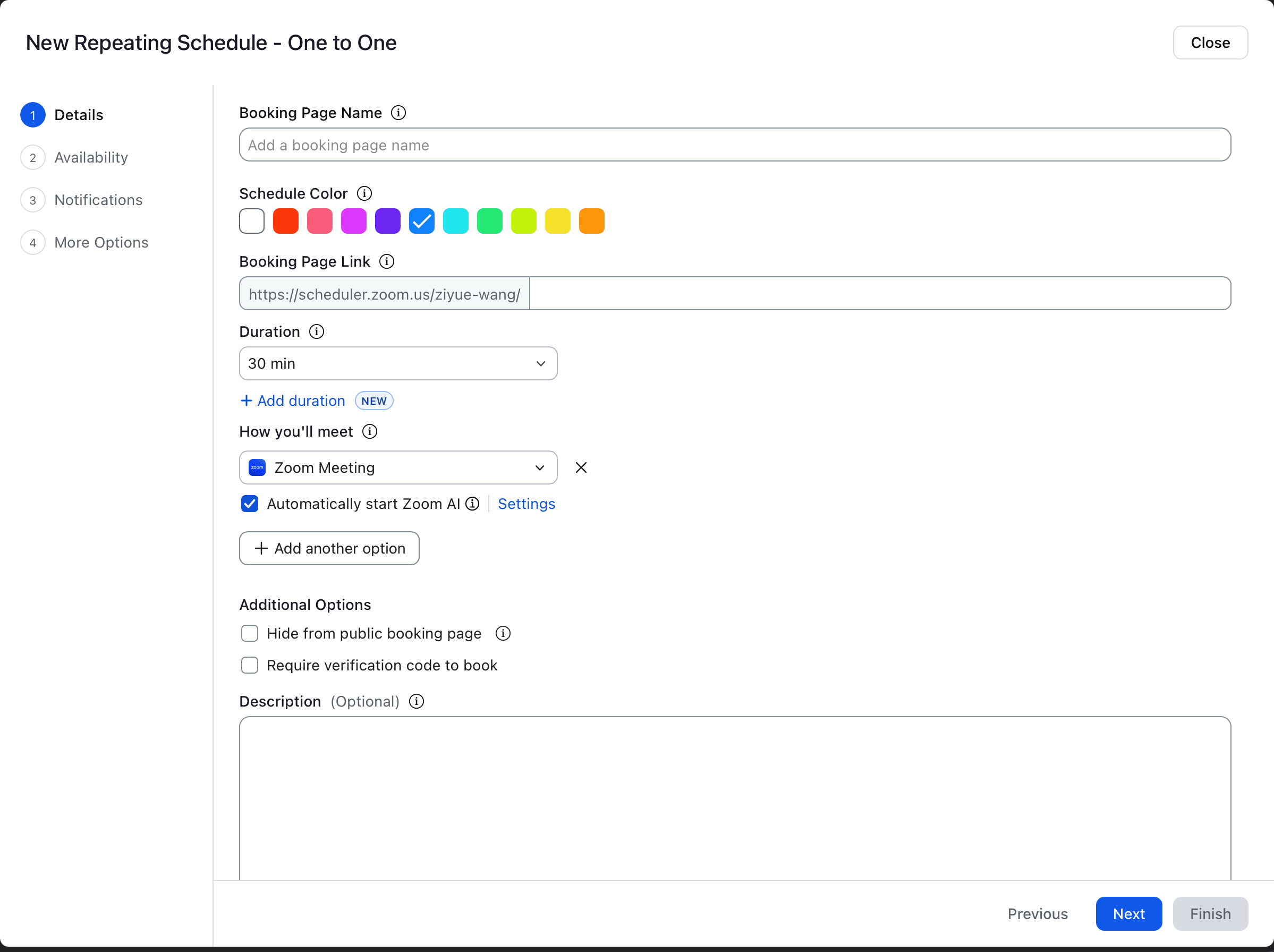
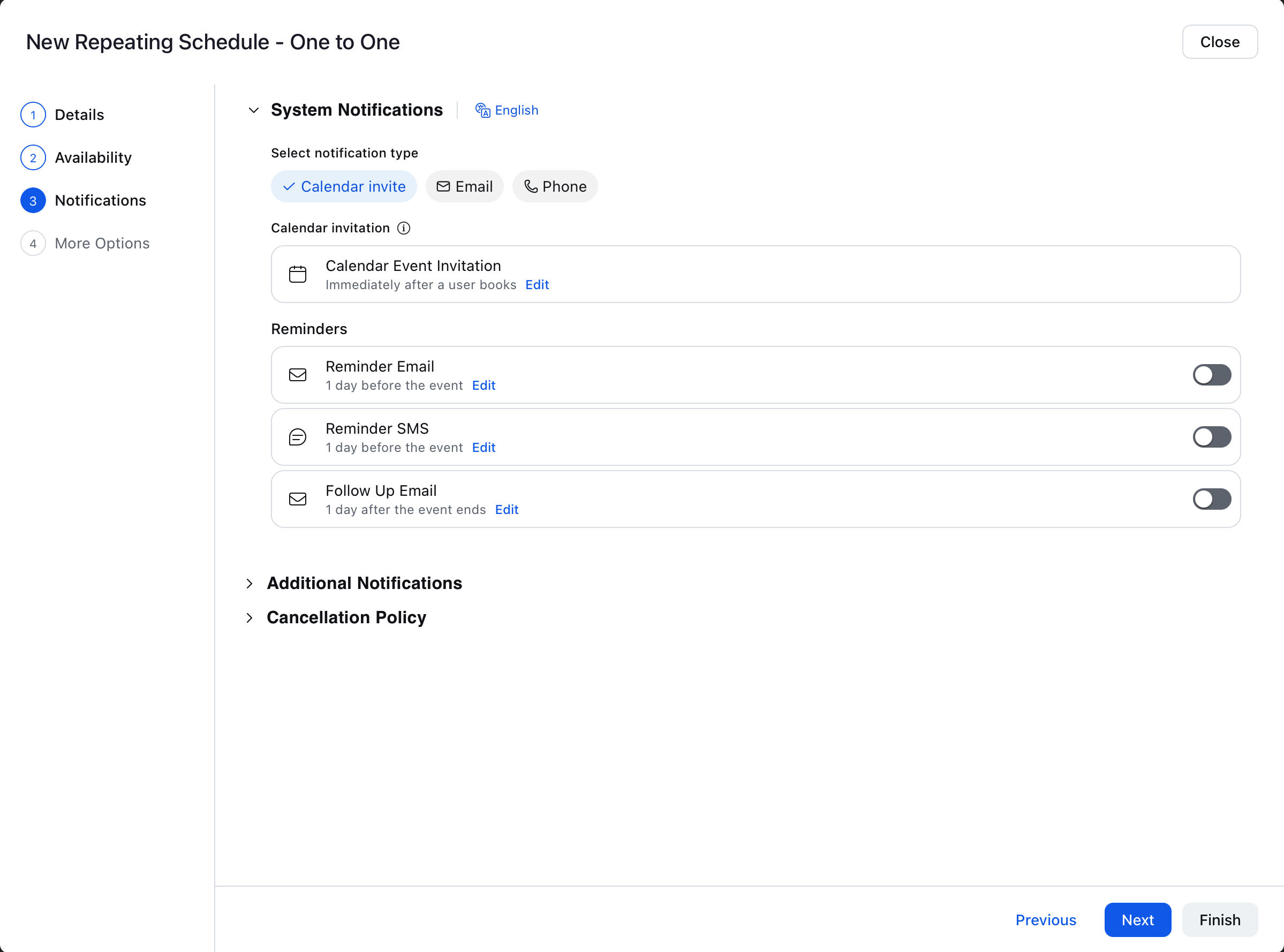


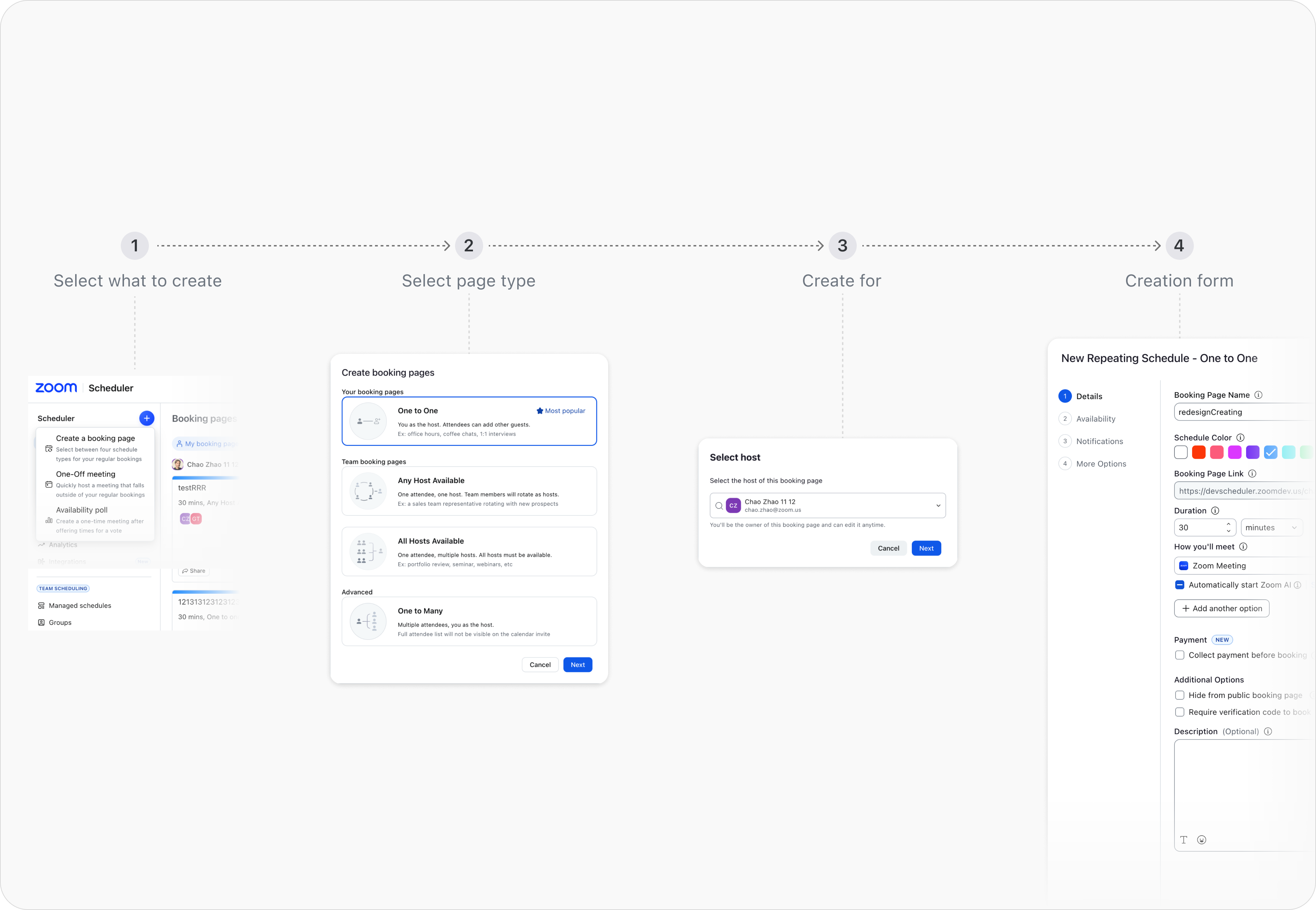
Current Flow - 3 Core Problems
New Flow — Overview

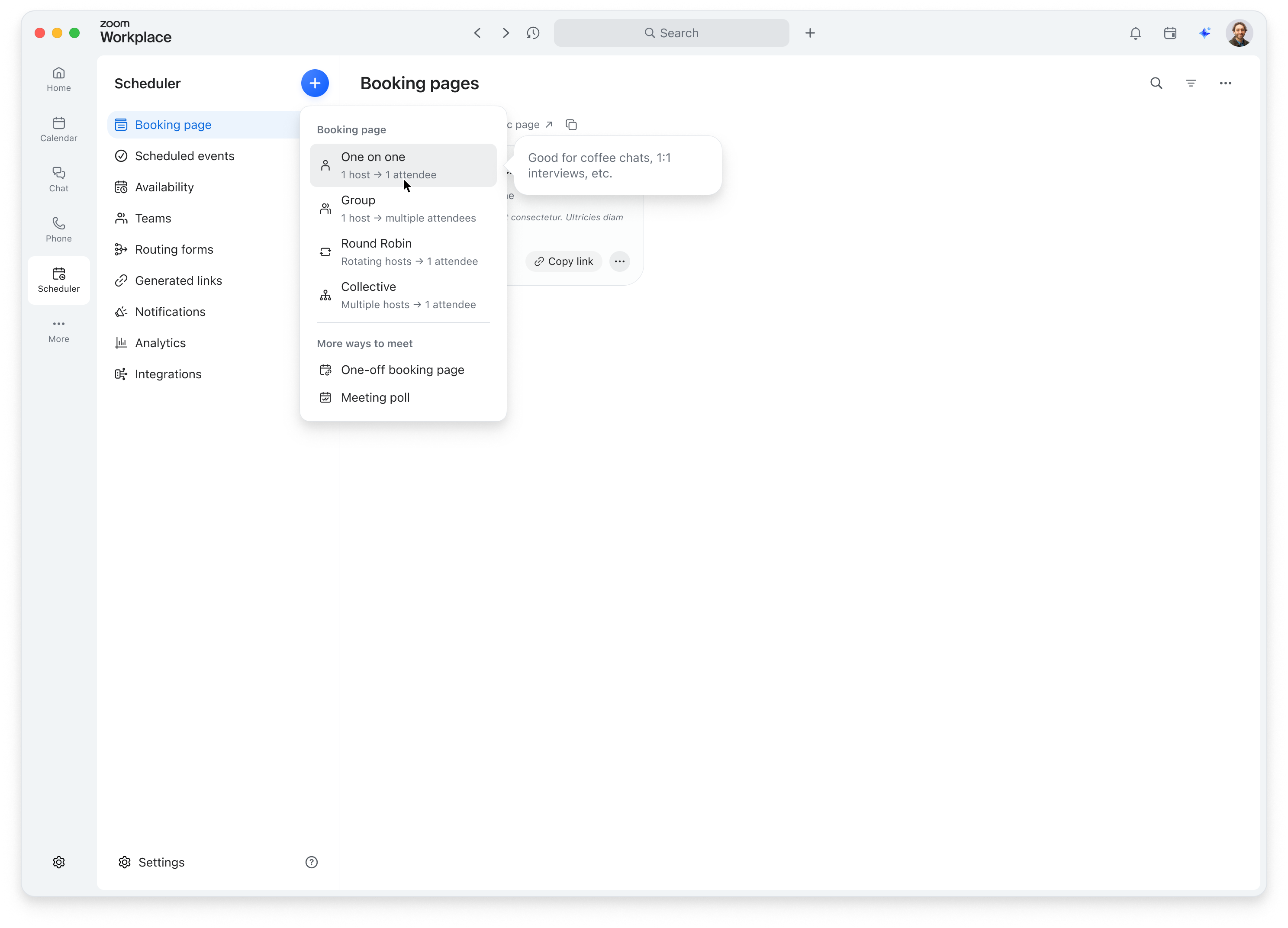
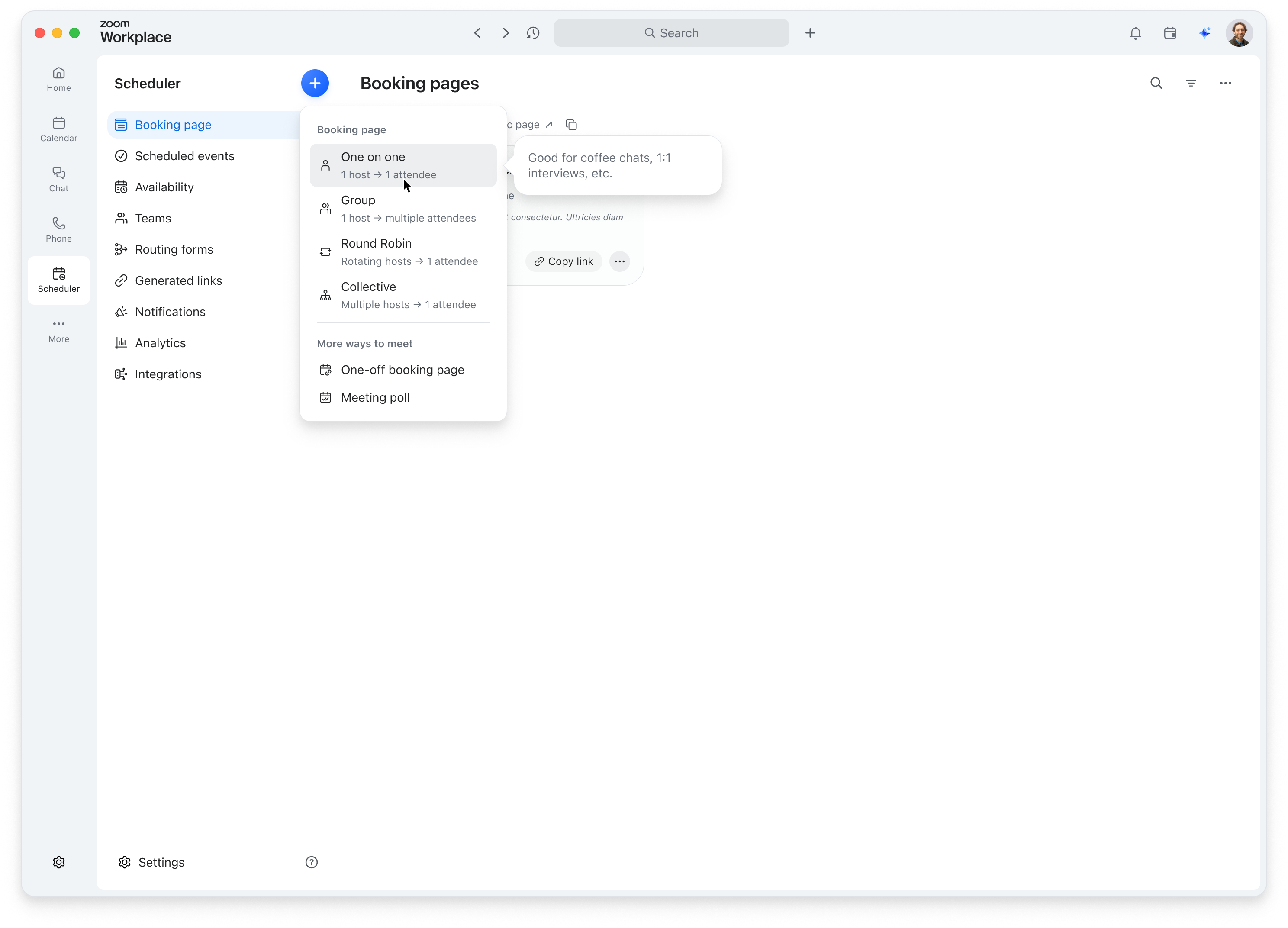
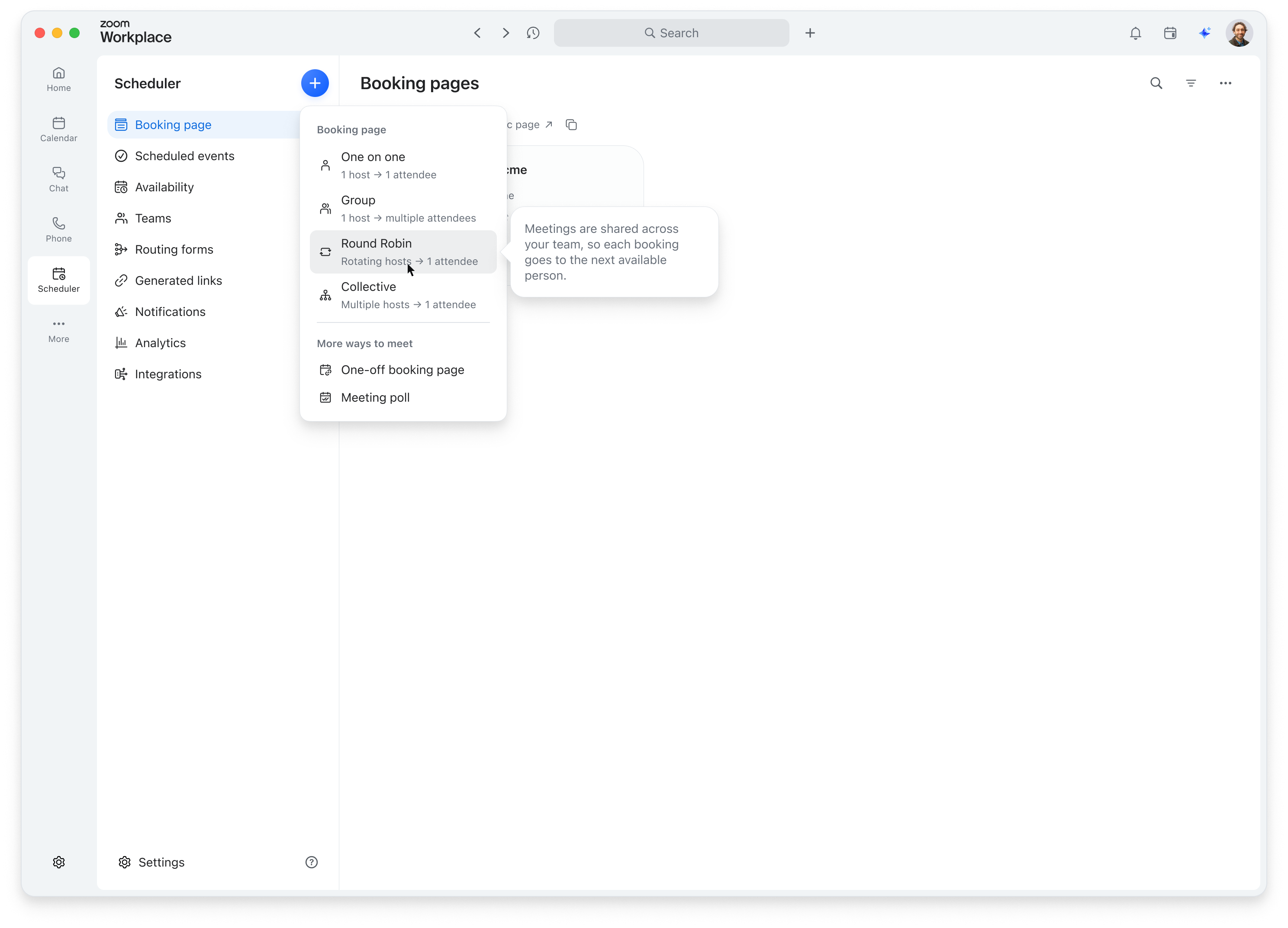
Select a page type
Choose a booking page type directly from the Create menu, with clear descriptions of who hosts and who attends.




 2

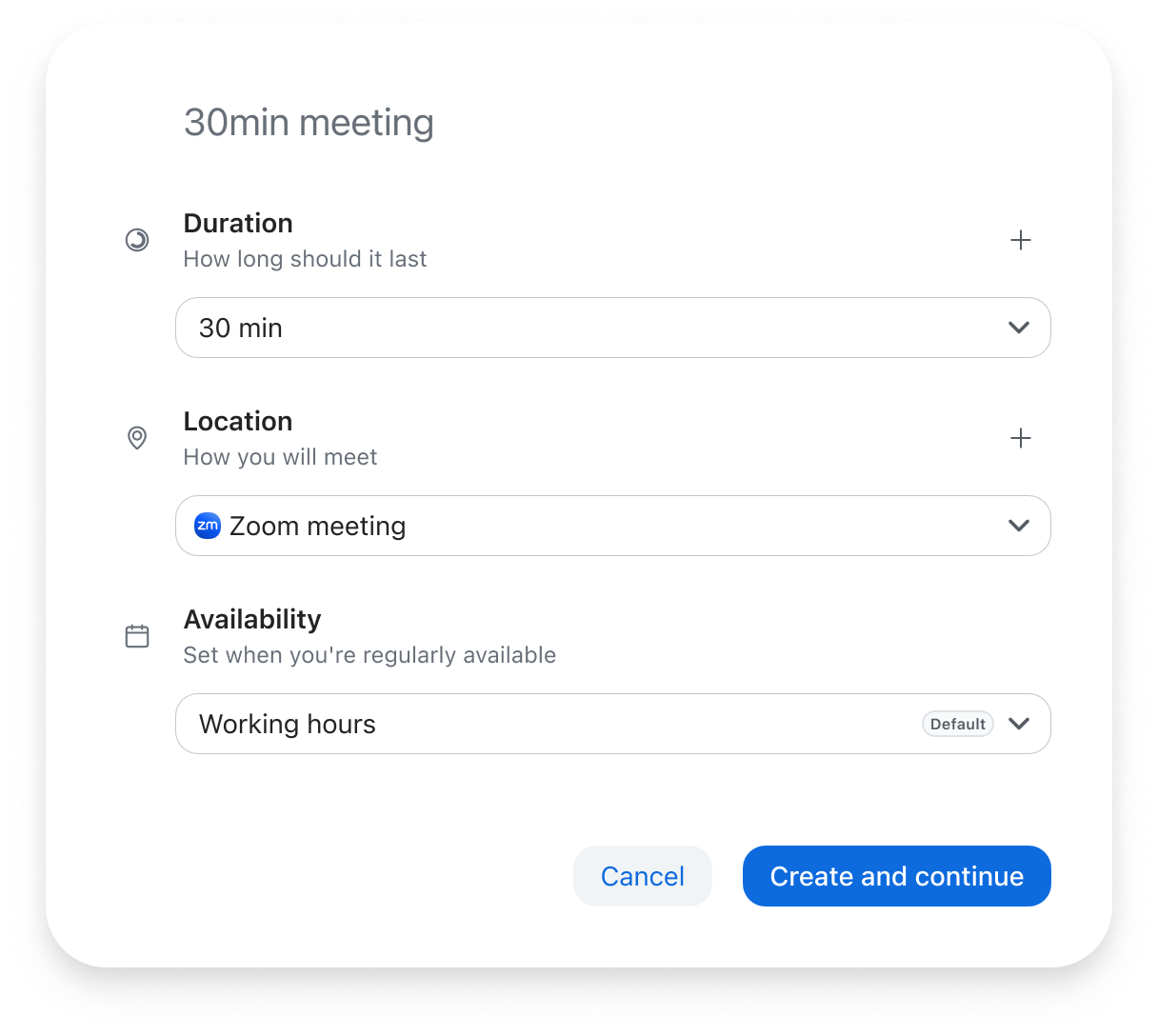
Create with the basics
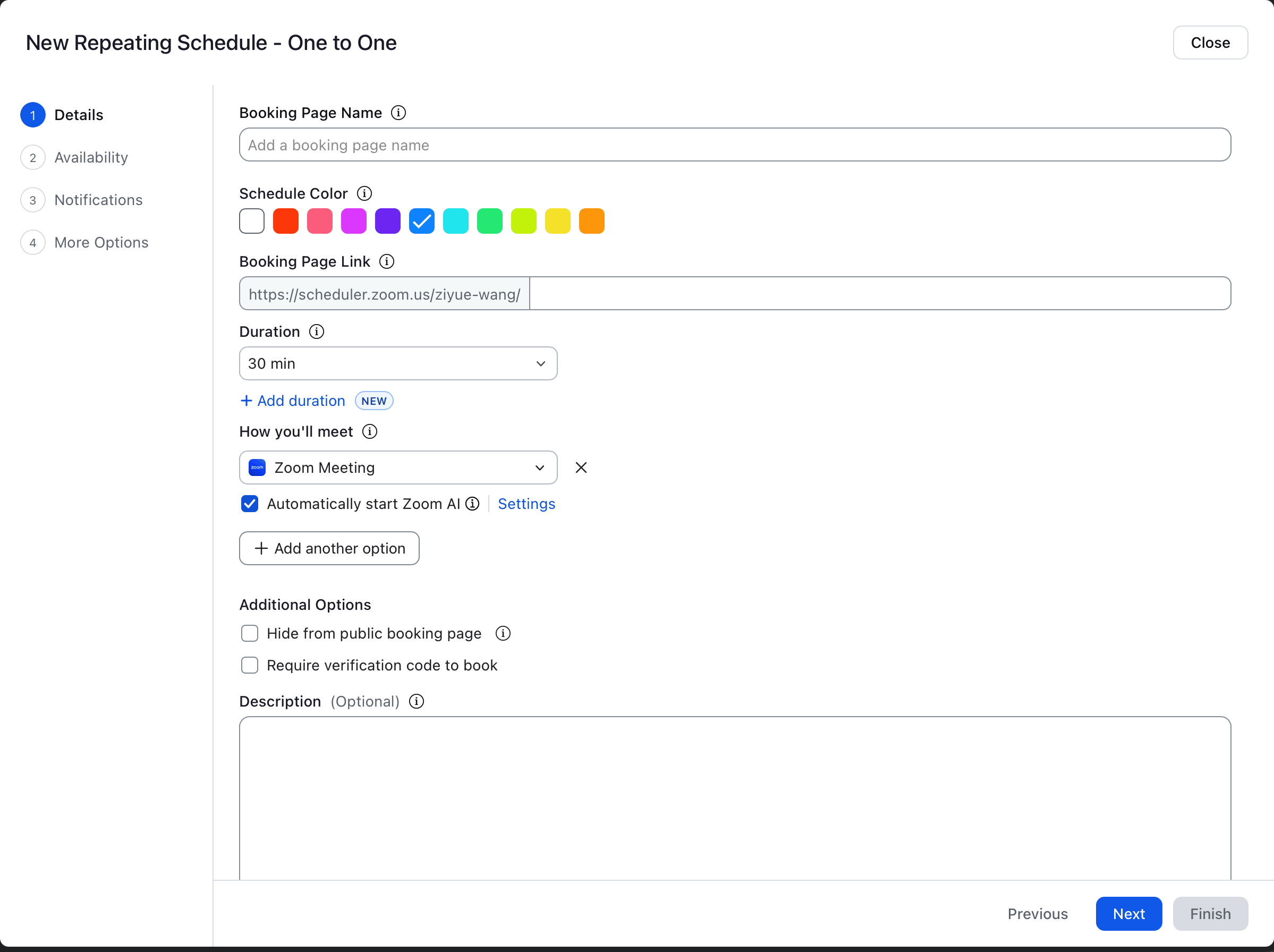
Review the basic settings in a single modal, then click Create and continue. The booking page is now created and ready to share.
 3

Review and customize
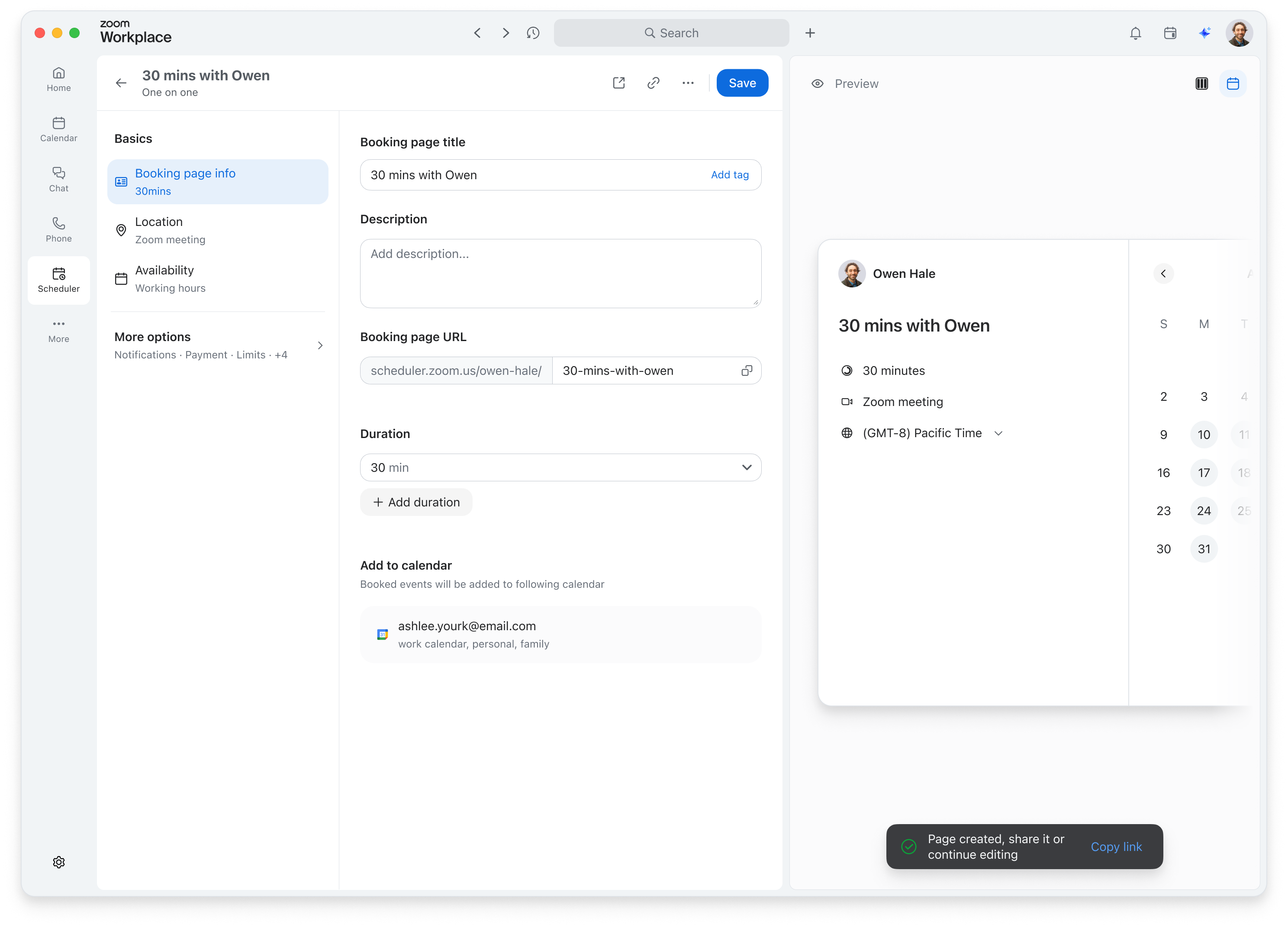
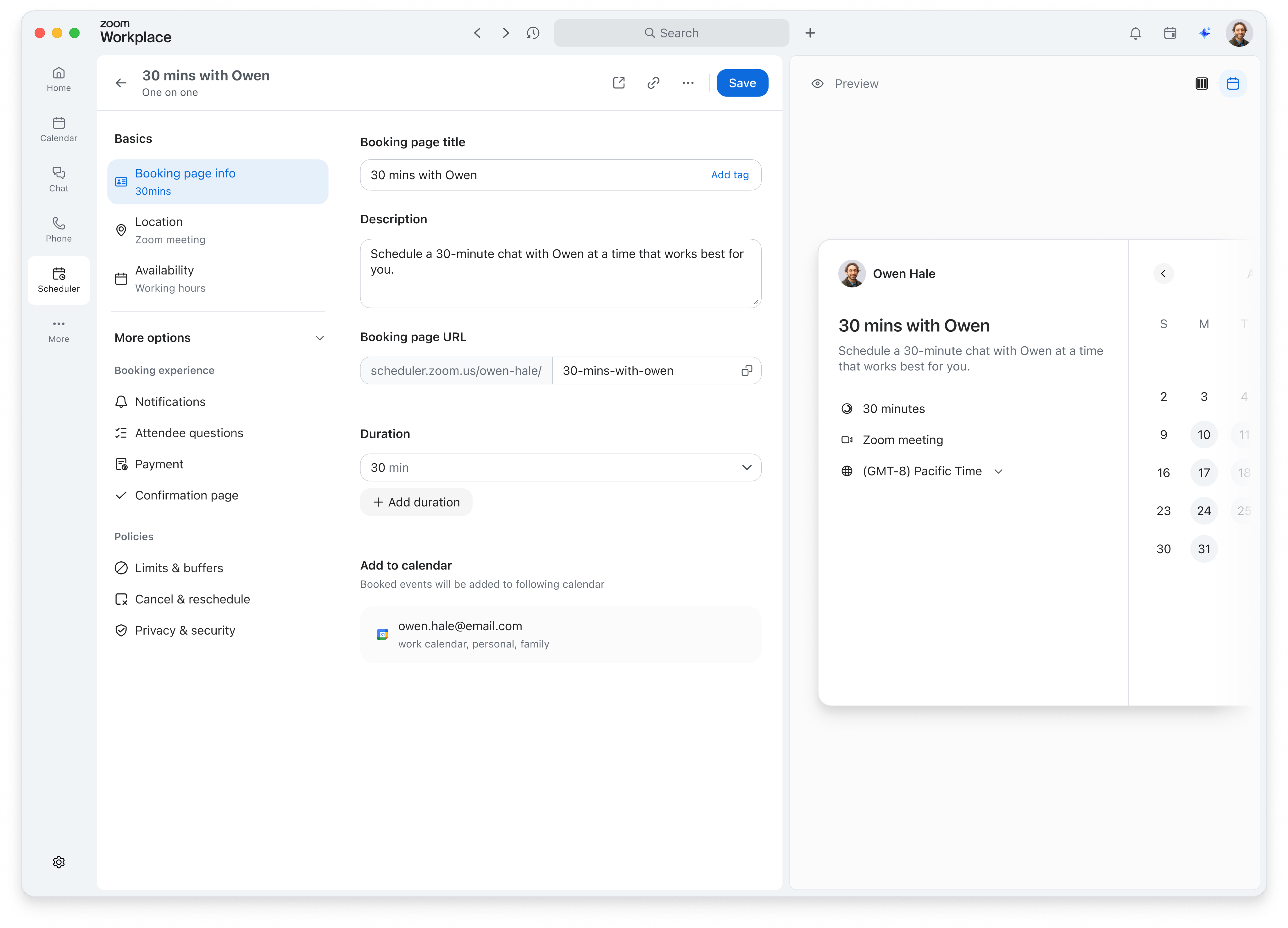
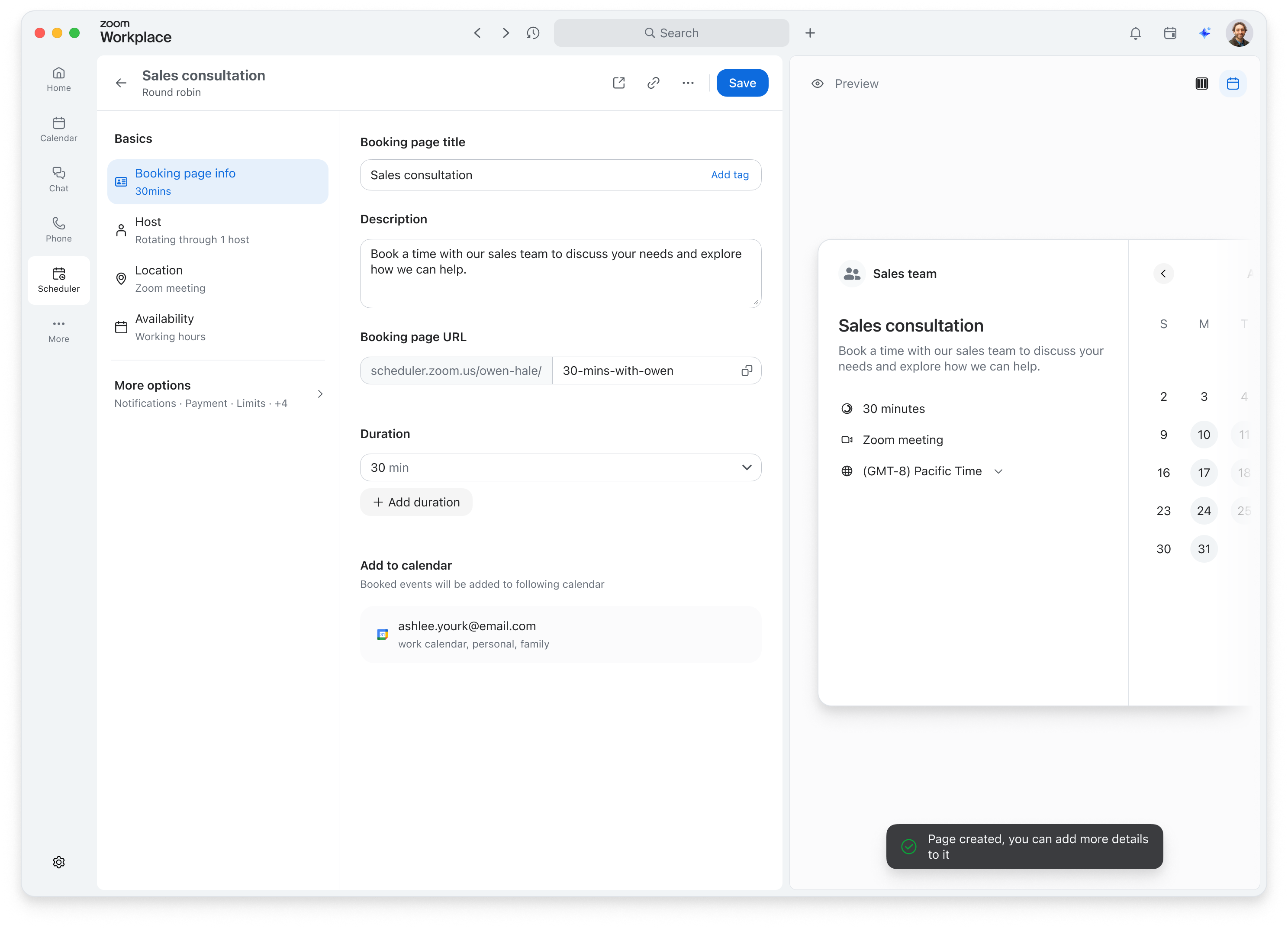
The newly created page opens automatically in the editor. Review it in the live preview and reveal more settings only when needed.
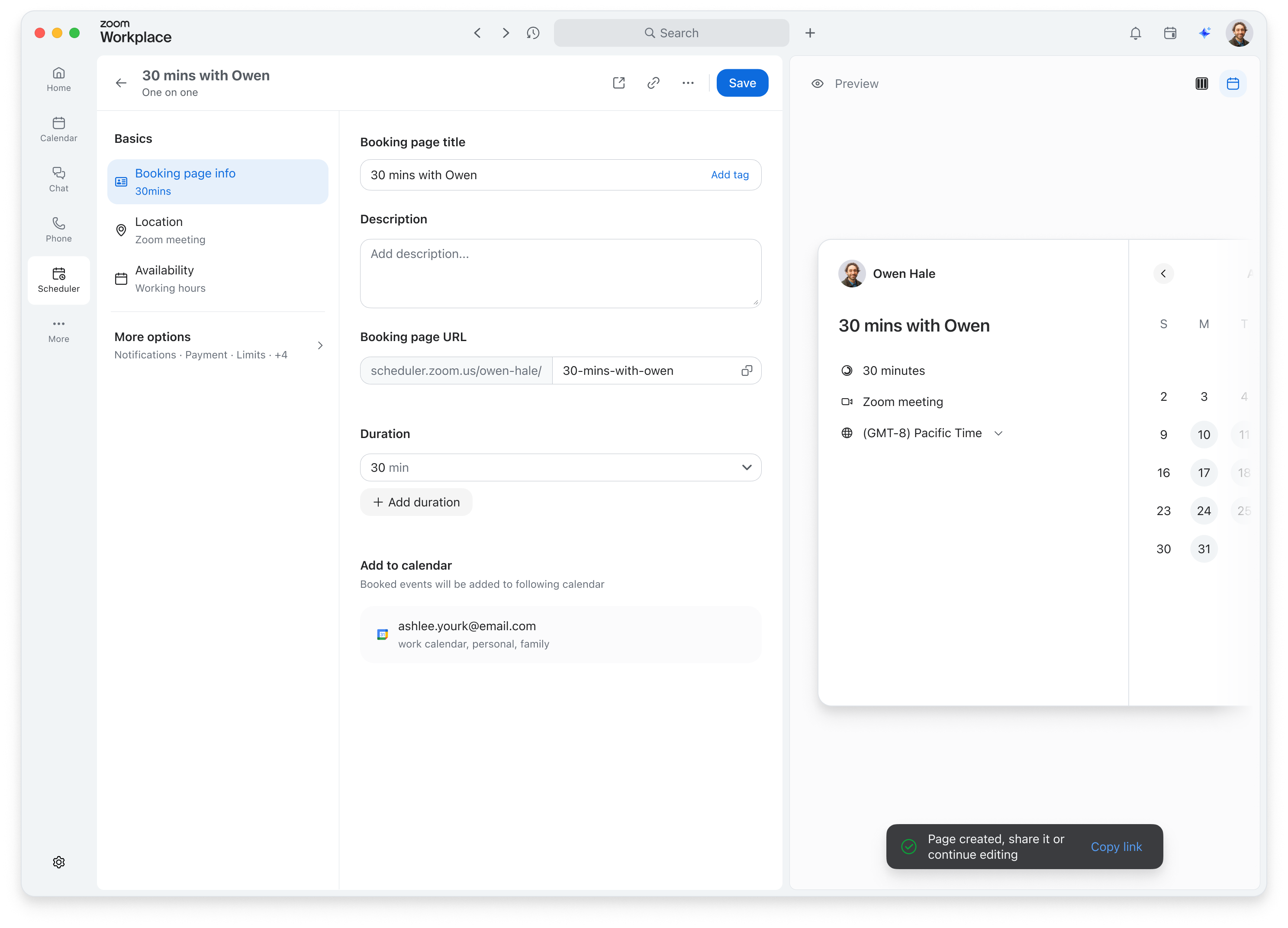

The new creation flow






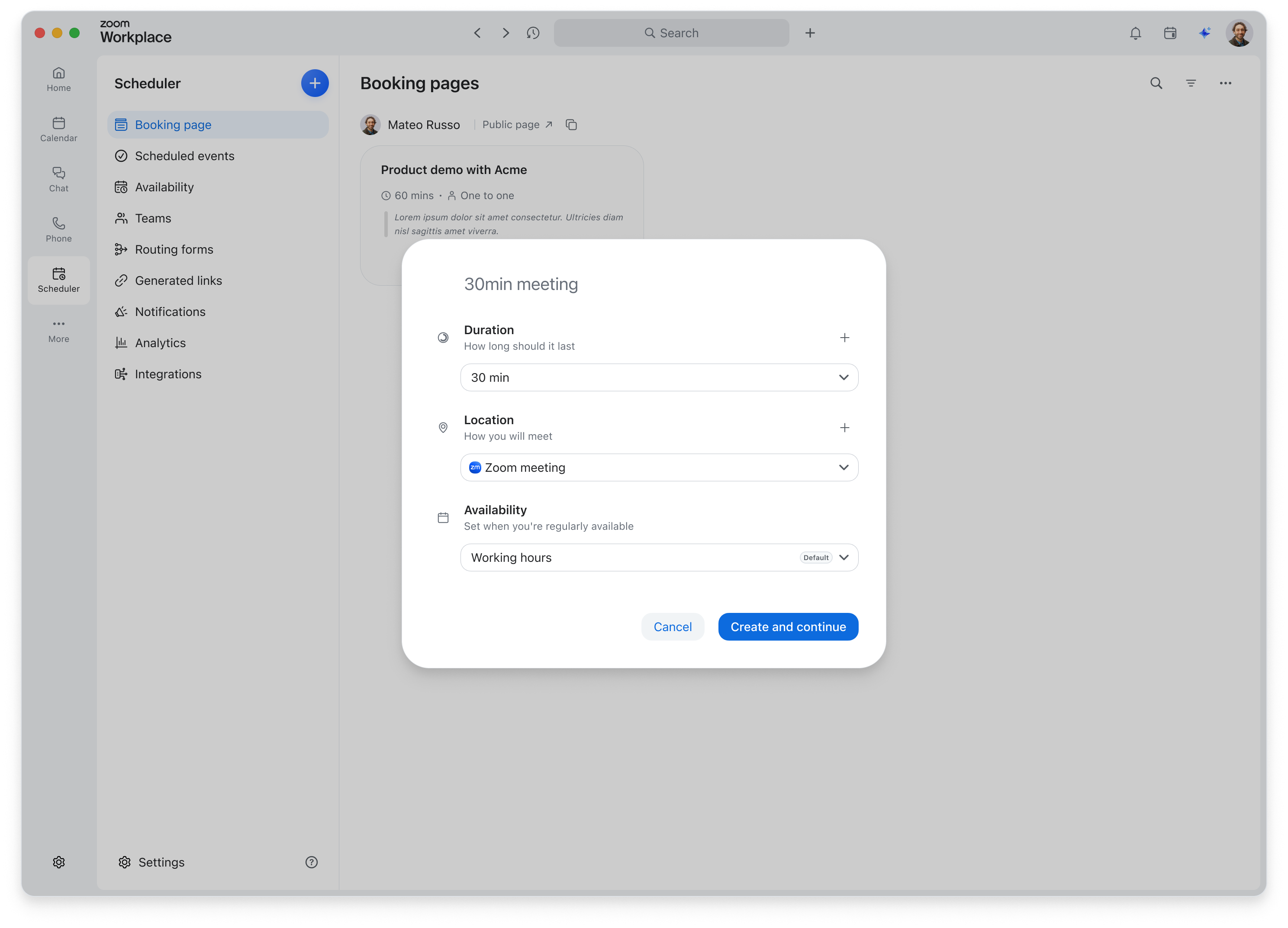
One click to create
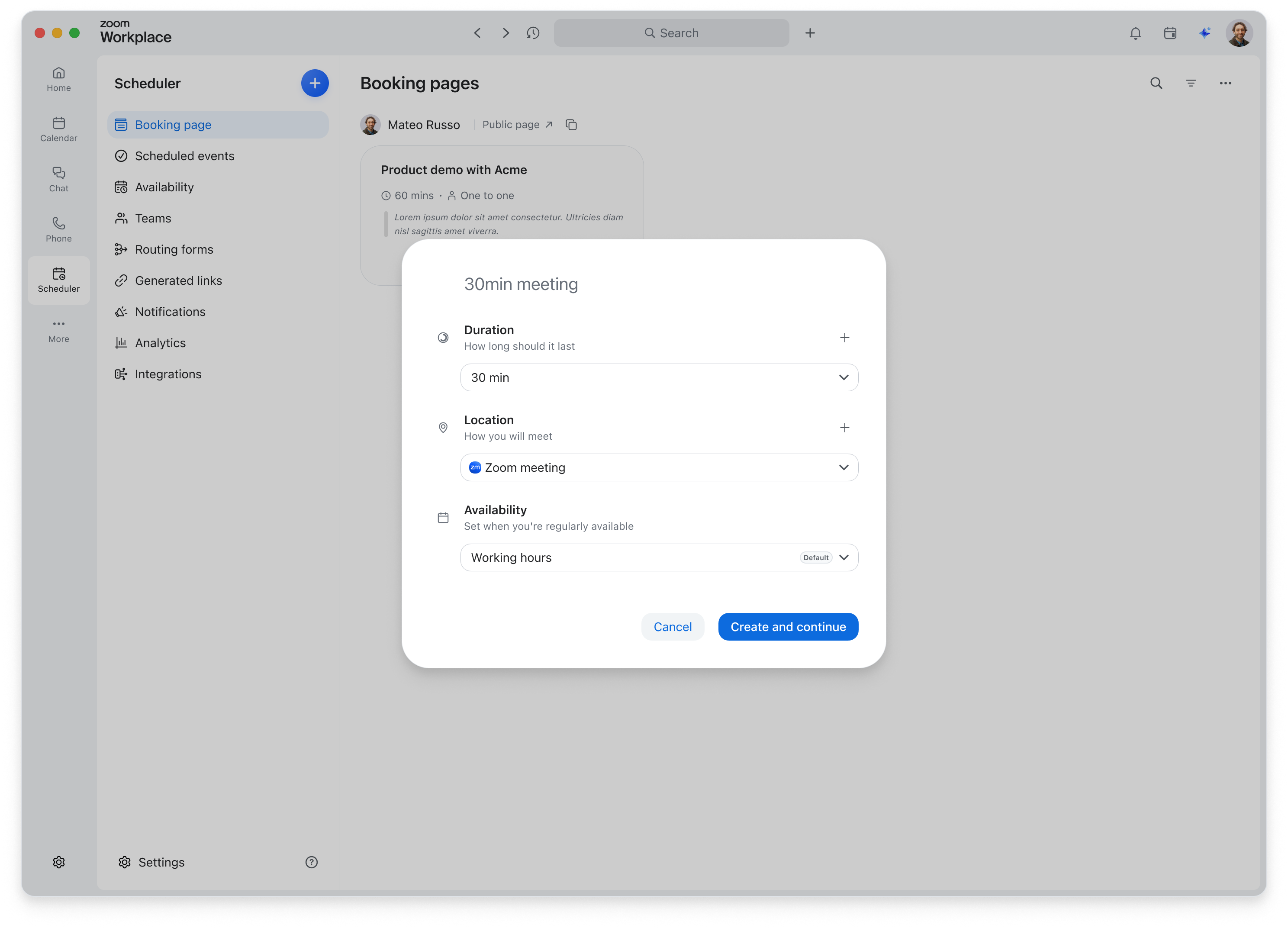
The quick creation modal brings together the essential settings needed to create a basic booking page. Every setting has a default value, so users can create with one click or adjust the duration, location, and availability first.

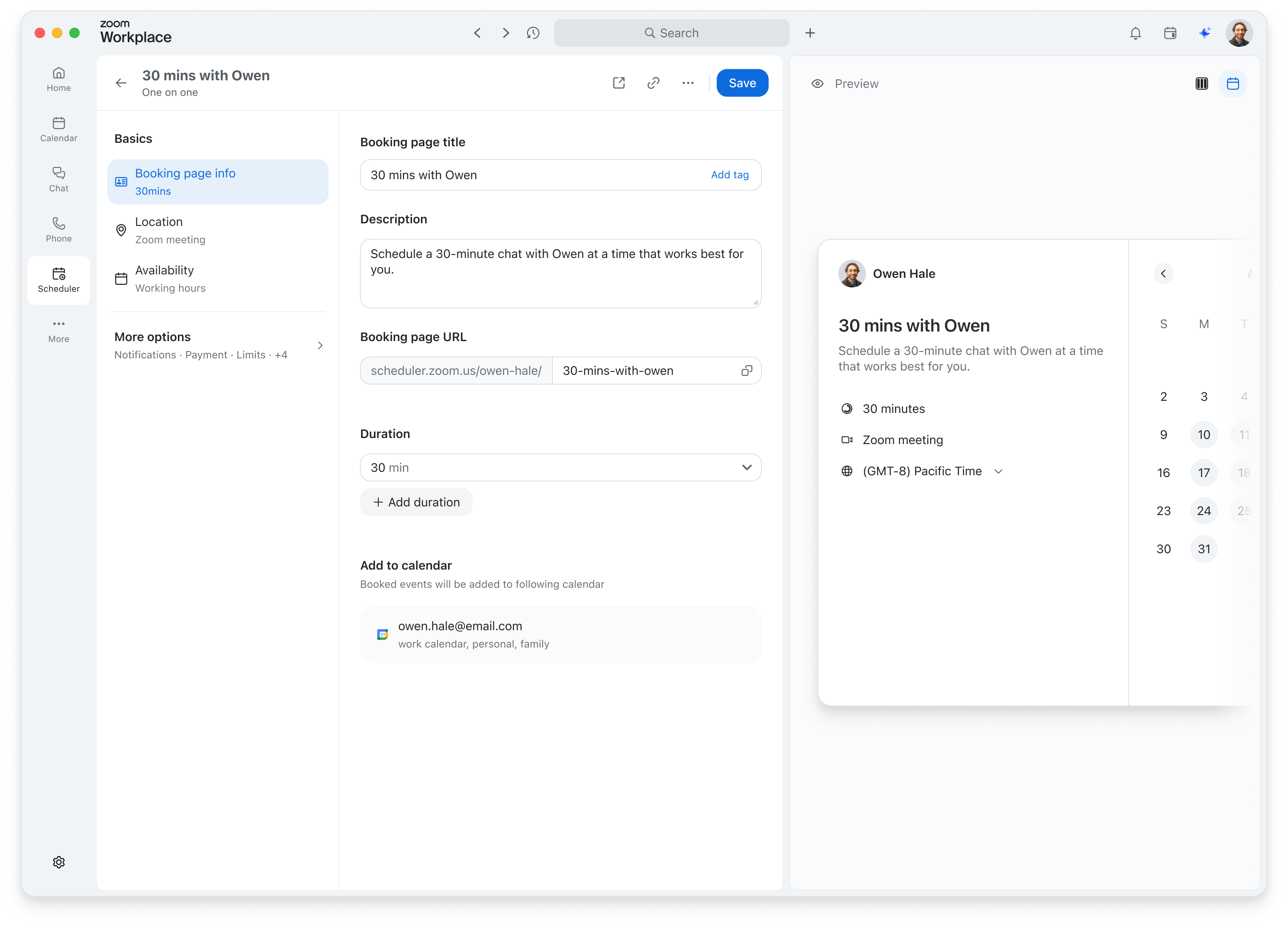
More settings, when needed
Once created, the booking page opens automatically in the full-page editor. Progressive disclosure keeps the initial view focused on the basics, with advanced settings available whenever users need them.

Explorations of creation flow
- Pros
- Cons
Modal-first creation
Create a basic page in a modal. Open the full editor only through More options.
- A short, self-contained flow for users who only need a simple page.
- Separate creation and editing interfaces need a clear transition.
- Complex team settings can overwhelm the modal.
Editor-first creation
Start in the full editor, with advanced settings collapsed. Create the page after configuration.
- Less UI, one workspace for setup, with no separate creation modal.
- More effort before the first save, with unsaved setup at risk if interrupted.
- Preview requires support before page creation.
Create first, then customize
Create from the quick modal, then automatically open the new page in the editor.
- Create a basic page and share it immediately.
- Add advanced settings to an existing page. keeping the initial creation effort low.
- Use the same editor after creation and for future edits.
The transition needs a clear creation confirmation.(A success toast confirms completion and provides a Copy link action)
Two-step creation
Complete Basics, click Next to review More options, then click Create.
- Separates essential settings from advanced options into two focused stages.
- Every user must pass through advanced options before creating.
- Setup remains unsaved until the end
- preview needs pre-creation support.
A lighter start for complex team setups
Team booking pages can involve multiple hosts, each with different locations and availability. Quick creation stays minimal, while the full-page editor provides room for these more complex configurations.
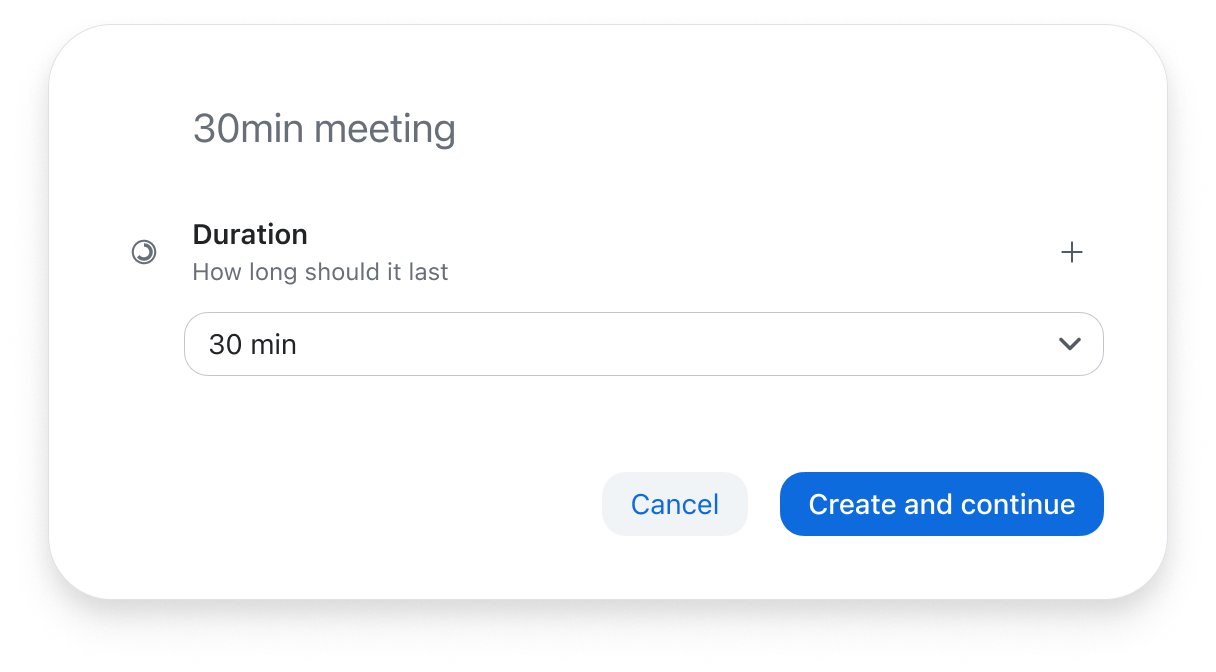
Start with a title and duration
For team pages, quick creation includes only a title and duration. Default settings make the page ready for bookings immediately, while host, location, and availability configuration continues in the editor.

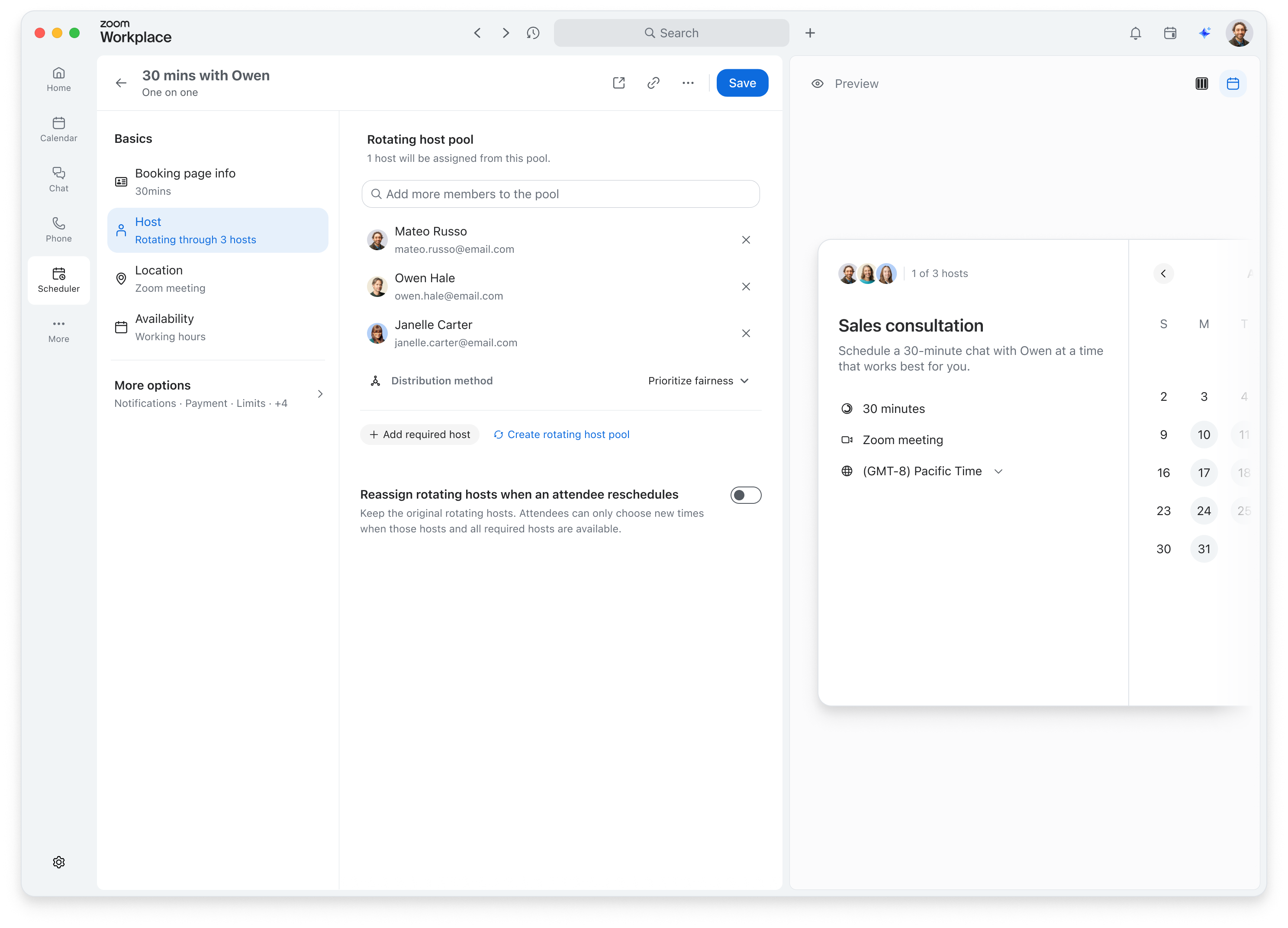
Build out the team in the editor
An additional Host tab lets users build out their team. In this Round Robin example, the current user starts in a single rotating pool. Users can then add hosts and configure their locations and availability.

Exploring a unified creation flow
Exploring how single-host pages (One-on-one and Group) and team pages (Round Robin and Collective) can share one creation flow while supporting different setup needs.
- Pros
- Cons
Minimal fields for every type
Use a minimal modal with title, duration, and description for all booking types. Configure hosts, locations, and availability in the editor.
- A short, consistent starting point across all booking types.
- Single-host users cannot confirm location or availability upfront and must check them in the editor.
Same core settings for every type
Include host, location, and availability settings in every quick creation modal.
- A consistent set of fields, with key booking details visible upfront.
- Multiple hosts, Round Robin pools, and per-host settings quickly overload the team modal.
Tailored setup by booking type
Keep location and availability visible for One-on-one and Group pages. For team pages, start with title and duration, then configure the team in the editor.
- Key booking details stay visible for single-host pages.
- Team complexity stays out of the quick creation modal.
- All types follow the same create-then-edit flow.
- The modal shows different fields depending on the booking type.

A reusable pattern for complex setup
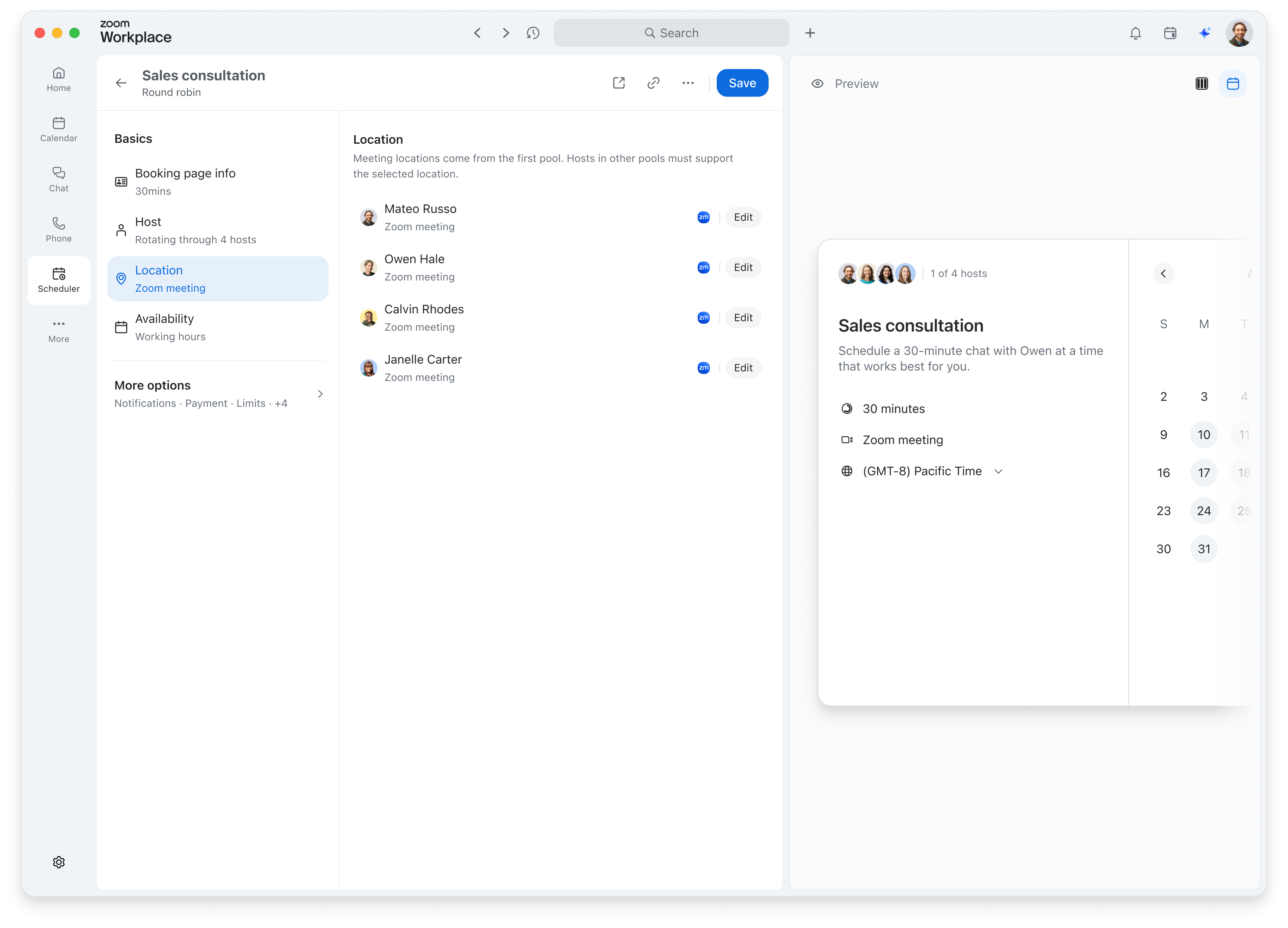
Keep common actions on the page, configure detailed settings in focused modals, and summarize the results in lists. The same pattern carries across host, location, and availability settings.

Common setup
More complex setup
Reusing the pattern across settings
This interaction pattern is reused across complex settings, including hosts, locations, and availability. The location example below shows how focused editing and list summaries keep growing configurations manageable.
Common setups
More complex setup

Before & after
Before
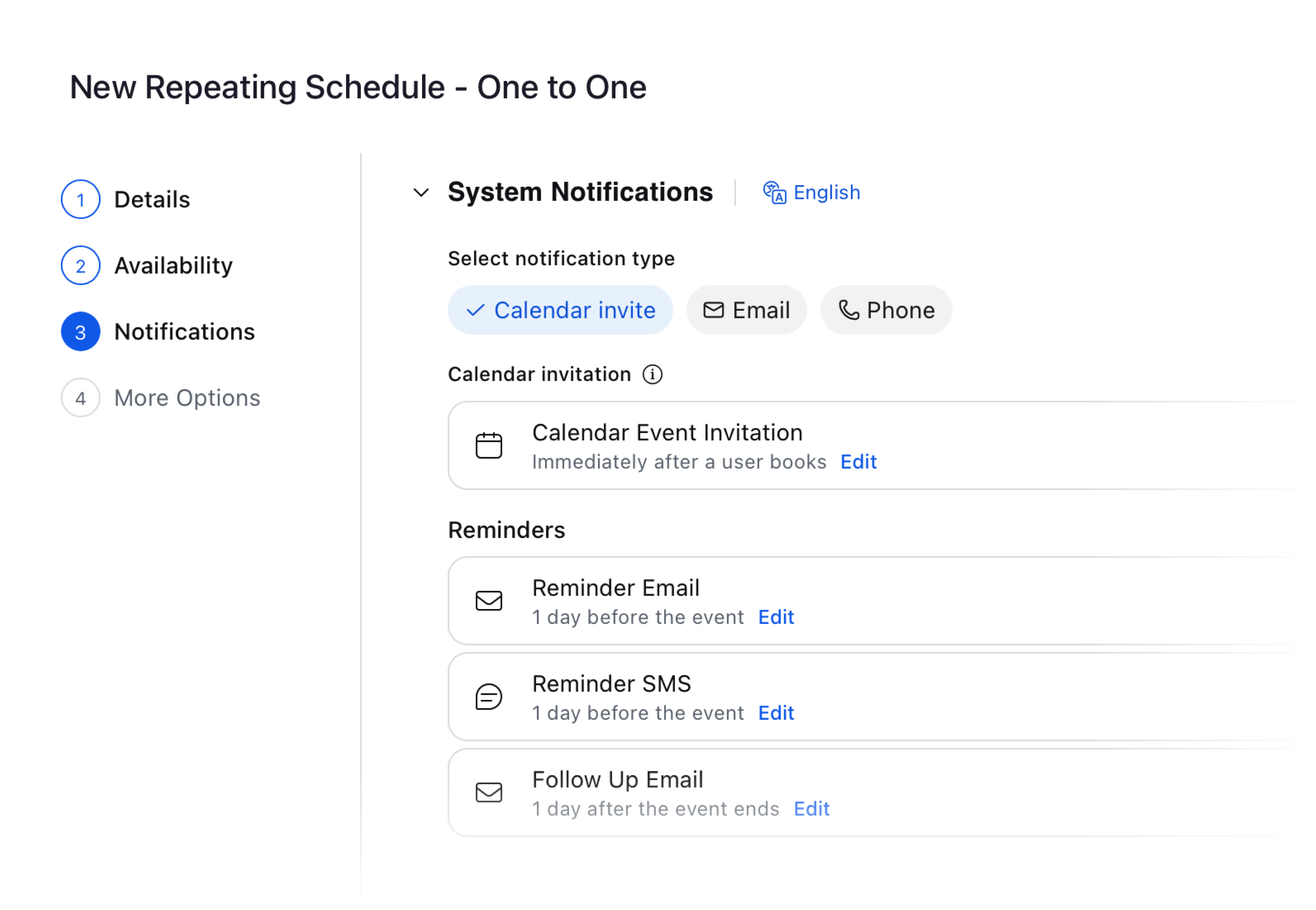
Users must navigate multiple menus and modals, then complete the creation form before a booking page is created.
After
With the basic settings already filled in, users can create a booking page in one click and immediately copy the link to share.